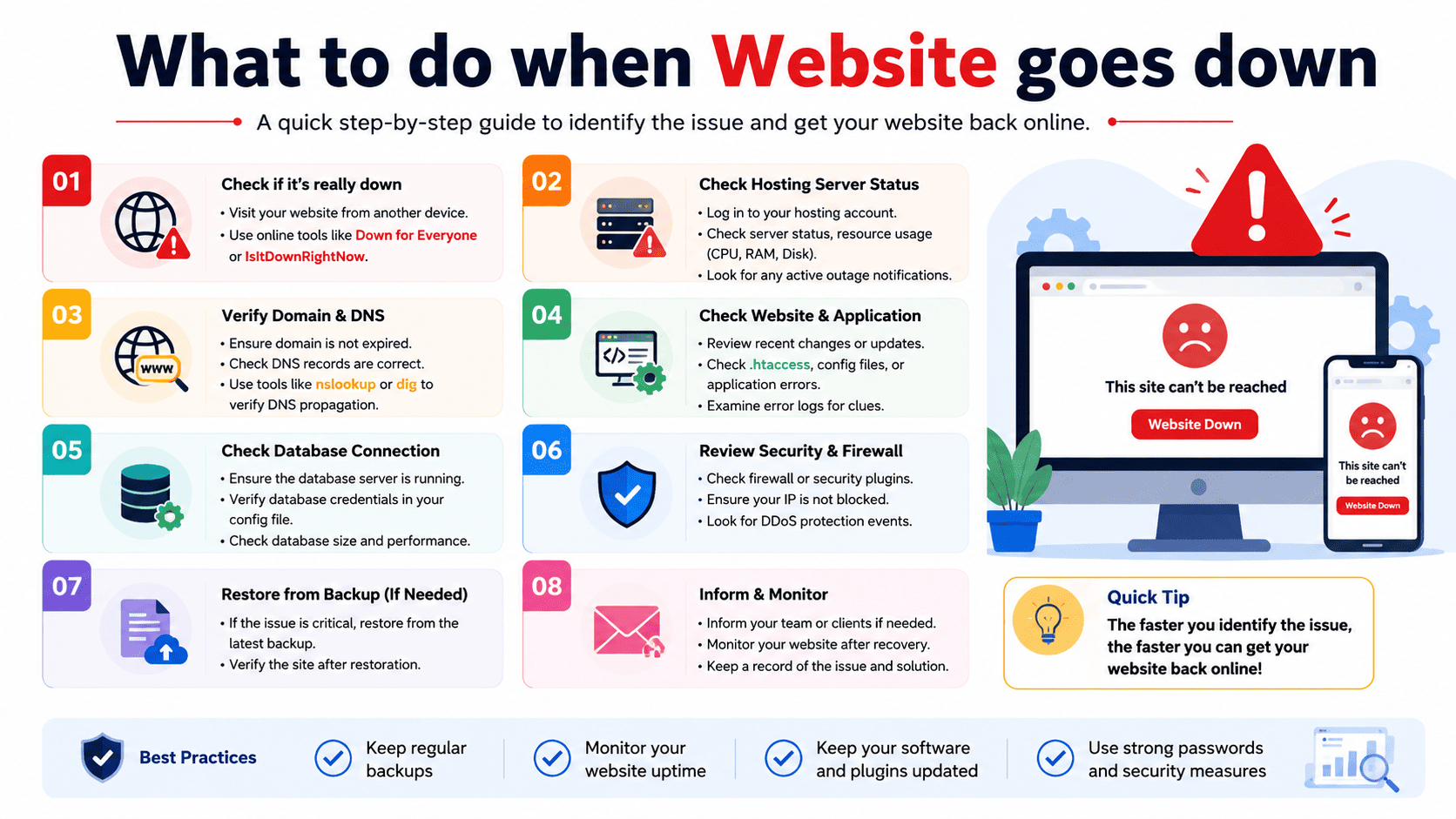

What to Do When Your Website Goes Down: A Complete Troubleshooting Guide
A website going down can be stressful, especially when visitors cannot access your pages, customers cannot place orders, or business emails stop working. The good news is that many website outages can be identified and resolved by following a systematic troubleshooting process.
Instead of immediately making random changes, first determine what is actually causing the outage. The problem could be related to your hosting server, DNS, domain, SSL certificate, website files, database, application, or a recent configuration change.
1. Confirm That the Website Is Actually Down
Before changing anything, verify the problem.
Try opening the website:
- From your normal browser
- In an incognito/private window
- From another device
- Using a different internet connection
- From a different location if possible
If the website works for you but not for someone else, the problem may be related to DNS, caching, or a local network rather than the server itself.
You can also check whether only one page is affected or the entire website is unavailable.
Ask these questions:
- Does the homepage load?
- Do other pages work?
- Does the website show an error message?
- Is the website extremely slow or completely unreachable?
- Can you access your hosting control panel?
- Are emails working?
These details can quickly narrow down the cause.
2. Check Your Hosting Server
Your hosting server is one of the first places to investigate.
Log in to your hosting control panel, such as cPanel, DirectAdmin, or another hosting management panel, and check whether the account is active.
Look for:
- Disk-space usage
- Bandwidth usage
- CPU or resource consumption
- Database availability
- Server status
- Recent account notifications
- Backup status
If your hosting account has reached its storage or resource limits, your website may stop functioning correctly.
For example, a website receiving an unexpected traffic spike could consume more CPU or memory than its hosting plan allows.
3. Check for a Hosting Provider Outage
Sometimes the website is down because the hosting infrastructure itself is experiencing a problem.
Check your hosting provider’s:
- Service-status page
- Outage notifications
- Support announcements
- Maintenance notifications
If multiple websites hosted on the same server are unavailable, there is a greater possibility that the issue is server-side.
In that situation, avoid repeatedly modifying your website configuration. Contact your hosting provider and provide the exact error message and approximate time when the outage started.
4. Identify the Error Code
The error displayed by your browser can provide valuable information.
404 — Page Not Found
The requested page or file cannot be found.
Possible causes include:
- Deleted files
- Incorrect URLs
- Broken links
- Incorrect redirects
- Website migration problems
403 — Forbidden
The server understands the request but refuses access.
Possible causes include:
- Incorrect file permissions
- Directory restrictions
- Security rules
- Incorrect
.htaccessconfiguration
500 — Internal Server Error
This usually indicates a server-side application or configuration problem.
Possible causes include:
- PHP errors
- Incorrect
.htaccessrules - Plugin conflicts
- Application configuration problems
- Server configuration issues
502 — Bad Gateway
This can occur when a server acting as a gateway or proxy receives an invalid response from an upstream service.
503 — Service Unavailable
The server is temporarily unable to handle the request.
Possible causes include:
- Server overload
- Maintenance
- Application failure
- Resource limits
Understanding the error code helps you focus your troubleshooting instead of guessing.
5. Check Your Domain and DNS Settings
If your website suddenly becomes unreachable, verify that your domain is still pointing to the correct server.
Check:
- A record
- AAAA record
- CNAME record
- Nameservers
- DNS zone configuration
- Domain expiration status
A simple DNS mistake can make a perfectly healthy server appear offline.
For example, if the domain’s A record was accidentally changed to an incorrect IP address, visitors may be sent to the wrong server.
If you recently changed nameservers, remember that DNS changes may require time to propagate.
6. Make Sure Your Domain Has Not Expired
A surprisingly common cause of website downtime is domain expiration.
Check your domain registrar account and confirm:
- The domain is active.
- The renewal date has not passed.
- Auto-renewal is enabled if appropriate.
- The domain is not suspended.
- The nameservers are still correct.
A hosting account can be perfectly healthy while an expired domain prevents visitors from reaching the website.
7. Check Your SSL Certificate
If your website uses HTTPS, an SSL problem can prevent visitors from accessing it normally.
Look for:
- Expired SSL certificate
- Incorrect certificate installation
- Domain mismatch
- Missing intermediate certificates
- Incorrect HTTPS configuration
If the website works with HTTP but produces a security warning over HTTPS, investigate the SSL configuration immediately.
Many modern hosting environments provide automatic SSL management, but certificates can still fail because of DNS problems or configuration changes.
8. Check Recent Changes
Think about what changed immediately before the website stopped working.
Common triggers include:
- Installing a new plugin
- Updating WordPress
- Changing a theme
- Editing
.htaccess - Changing PHP versions
- Modifying DNS records
- Installing a new application
- Changing database credentials
- Editing configuration files
- Moving the website to another server
If the outage started immediately after a change, that change should be one of your first suspects.
When possible, revert the recent change and test the website again.
9. Check Your Website Files
If your domain and server are working but the website still does not load, inspect the website files through your hosting control panel’s File Manager or FTP.
Check that:
- The document root is correct.
- The homepage file exists.
- Important application files are present.
- Files were not accidentally deleted.
- File permissions are appropriate.
- The website has not been replaced with an unexpected file.
For PHP-based websites, also verify that the required PHP files and configuration files are intact.
10. Investigate the Database
Many websites depend heavily on databases.
WordPress, online stores, membership platforms, forums, and custom applications may stop working if their databases become unavailable.
Possible database-related problems include:
- Database server outage
- Incorrect database credentials
- Corrupted tables
- Database connection limits
- Incorrect database hostname
- Missing database
- Insufficient database privileges
A common WordPress message is:
“Error establishing a database connection.”
If you see this message, check the database credentials and database-server availability before changing other parts of the website.
11. Check PHP and Application Compatibility
Changing the PHP version can sometimes cause a website to stop working.
This is especially common with older applications, themes, and plugins.
If your hosting panel allows you to select PHP versions, check whether the PHP version was recently changed.
A useful troubleshooting approach is to:
- Identify the previous PHP version.
- Check whether the application supports the current version.
- Review PHP error logs.
- Test after correcting compatibility issues.
Avoid staying on an outdated PHP version permanently just because it temporarily fixes an outage. Instead, update the application or replace incompatible components where possible.
12. Check Plugins and Themes
For WordPress websites, plugins and themes are common sources of unexpected errors.
A newly updated plugin can conflict with:
- Another plugin
- Your theme
- Your PHP version
- WordPress core
- Server configuration
If you cannot access the WordPress dashboard, plugins can sometimes be temporarily disabled through the hosting File Manager or another appropriate method.
Disable suspected components one at a time and test the website after each change.
This approach makes it easier to identify the actual cause.
13. Review Error Logs
Error logs are extremely useful when a website fails without an obvious explanation.
Depending on your hosting setup, logs may reveal:
- PHP errors
- Permission problems
- Database failures
- Missing files
- Application exceptions
- Server configuration issues
Instead of simply seeing “500 Internal Server Error,” an error log may identify the specific file or function responsible.
When contacting hosting support, providing the relevant error-log entry can significantly speed up troubleshooting.
14. Check Resource Usage
A website can go down because it has exceeded available server resources.
Common causes include:
- Sudden traffic increases
- Bots and crawlers
- Inefficient plugins
- Heavy database queries
- Large background processes
- Malware
- Poorly optimized scripts
Check your hosting panel for CPU, memory, process, inode, and bandwidth usage where available.
If resource usage is consistently high, you may need to optimize the website or move to a hosting plan with more resources.
15. Look for Security Problems
If your website suddenly redirects visitors, displays strange content, or becomes unusually slow, investigate the possibility of a security compromise.
Warning signs can include:
- Unknown administrator accounts
- Unexpected files
- Suspicious redirects
- Modified website content
- Unusual server activity
- Unknown plugins or scripts
- Large amounts of unexpected traffic
Do not simply delete suspicious files without first understanding what happened. If you suspect a compromise, preserve relevant logs and contact your hosting provider or a qualified security professional.
16. Restore From a Backup When Necessary
If troubleshooting does not resolve the problem and you have a known-good backup, restoration may be the fastest solution.
Before restoring:
- Identify when the website was last known to work.
- Select a backup from before the problem occurred.
- Preserve the current website files if possible.
- Restore the appropriate files and database.
- Test the website.
- Investigate the original cause afterward.
A backup is most valuable when it has actually been tested and can be restored successfully.
17. Contact Your Hosting Provider
Sometimes the problem is beyond what you can fix from the hosting panel.
Contact support if you suspect:
- Server hardware problems
- Network outages
- Server-level configuration problems
- Database-server failures
- Account suspension
- Resource restrictions
- Security incidents
- DNS infrastructure issues
When contacting support, provide useful information such as:
Domain: Your website address
Problem: What visitors see
Error code: 404, 500, 503, etc.
Started: Approximate time the problem began
Recent changes: Updates, migrations, configuration changes
Troubleshooting: Steps you have already tried
This gives the support team enough information to investigate efficiently.
What Not to Do When Your Website Goes Down
Panic-driven changes can make an outage worse.
Avoid:
- Deleting files without a backup
- Randomly changing DNS records
- Changing multiple settings simultaneously
- Reinstalling WordPress immediately
- Deleting database tables without understanding them
- Repeatedly restarting services you do not control
- Changing file permissions randomly
- Restoring an old backup without checking what data will be lost
Make one controlled change at a time and test the result.
Quick Website Recovery Checklist
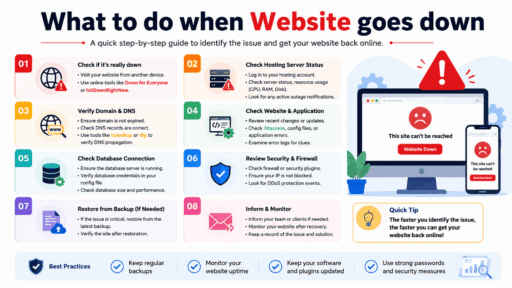
- Confirm the website is actually unavailable.
- Test it from another device or network.
- Record the exact error message.
- Check the hosting account status.
- Check server/resource usage.
- Verify the domain has not expired.
- Check DNS records and nameservers.
- Check SSL/HTTPS.
- Review recent changes.
- Inspect website files.
- Check the database.
- Review PHP and application errors.
- Check plugins/themes if using WordPress.
- Review server and application logs.
- Look for signs of security issues.
- Restore a known-good backup if necessary.
- Contact hosting support when the issue is server-side.
Final Thoughts
When a website goes down, the fastest solution is usually not to start changing everything at once. Identify the symptoms first, determine whether the problem is local, DNS-related, application-related, or server-side, and then troubleshoot one layer at a time.
Maintaining regular backups, monitoring resource usage, keeping applications updated, securing your hosting account, and having reliable hosting support can dramatically reduce the impact of future outages.
A website outage is a problem—but with a structured recovery process, you can often identify the cause quickly and get your website back online with minimal disruption.