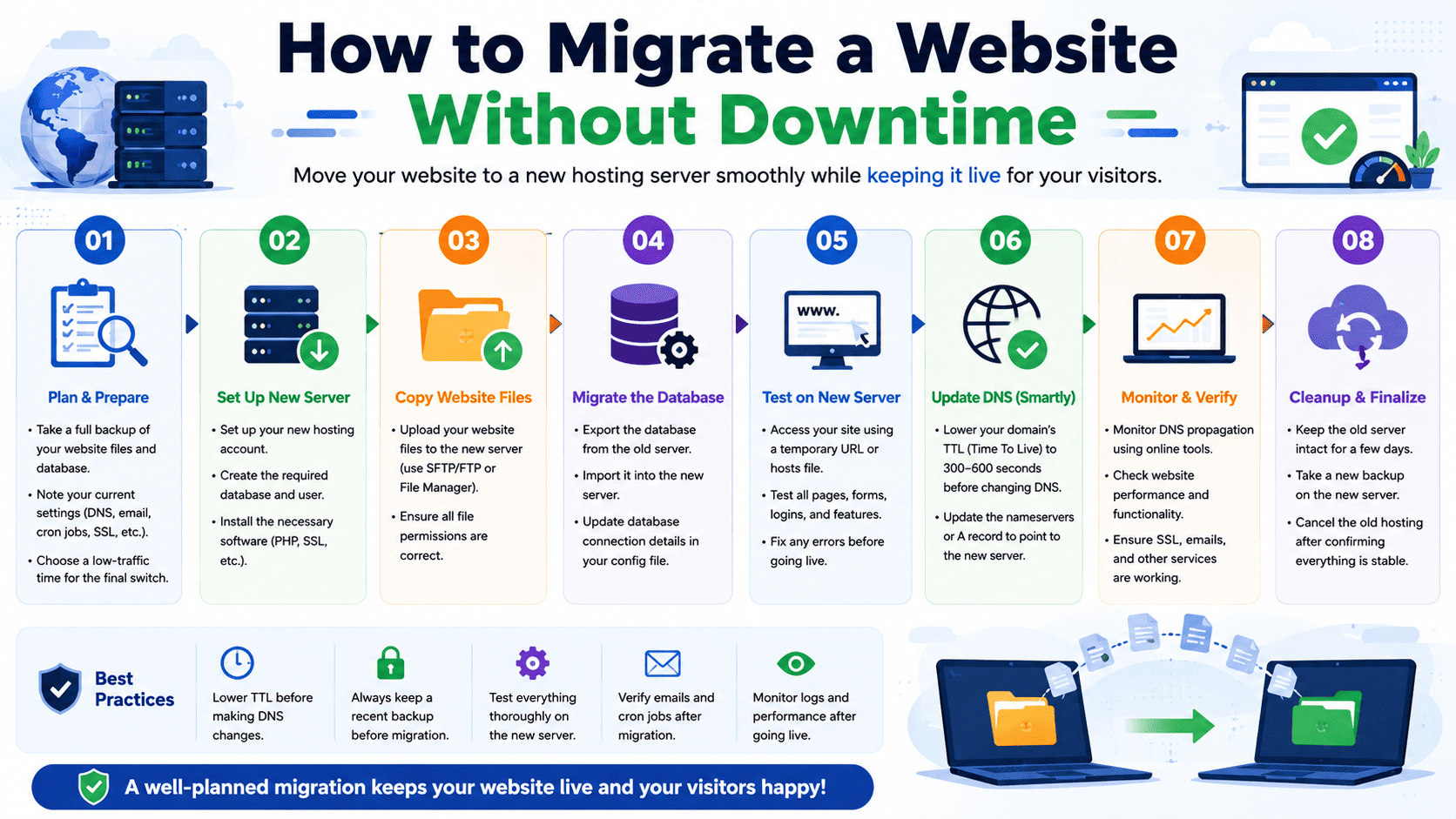

How to Migrate a Website Without Downtime: A Complete Guide
Moving a website from one hosting provider, server, or platform to another can improve performance, security, reliability, and scalability. However, migration also carries risks. A poorly planned move can result in broken links, database errors, DNS problems, missing files, or extended downtime.
The goal of a zero-downtime or near-zero-downtime migration is to prepare the new environment before switching visitors from the old server to the new one. With proper planning, testing, and DNS management, you can move a website with little or no noticeable interruption.
What Does “Migration Without Downtime” Mean?
A website migration without downtime means visitors continue accessing the existing website while the new hosting environment is being prepared.
Instead of:
Old Server → Website Offline → New Server
the process becomes:
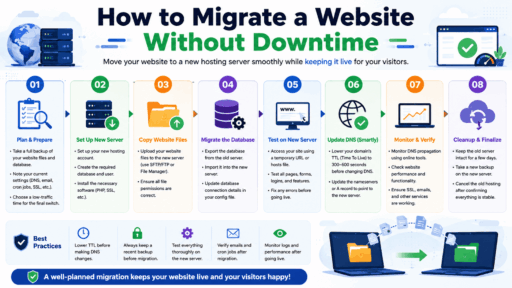
Old Server → Prepare New Server → Synchronize Data → Test → Switch Traffic → Monitor
The old website remains available until the new environment is ready to handle visitors.
1. Plan the Migration Before Starting
Avoid beginning a migration without a clear plan.
First, document your current hosting environment, including:
- Domain name
- Hosting/server IP address
- Website files
- Databases
- Email accounts
- DNS records
- SSL certificates
- Cron jobs
- PHP version
- Database version
- Application version
- Third-party integrations
- CDN configuration
- Firewall and security settings
Also make a list of everything that must continue working after the migration.
For an e-commerce website, this could include customer accounts, orders, payments, inventory, and transactional emails.
2. Choose the New Hosting Environment
Before moving anything, make sure the new server supports your website.
Check compatibility with:
- PHP or other programming languages
- MySQL/MariaDB or other databases
- Required PHP extensions
- Web server technology
- SSL
- Cron jobs
- Required software
- Application dependencies
- Server resources
If you are moving a WordPress website, check the requirements of WordPress, your theme, and your plugins.
Choosing a server that matches or exceeds the current environment reduces compatibility problems.
3. Lower DNS TTL Before Migration
DNS TTL, or Time to Live, determines how long DNS resolvers may cache DNS information.
Before migration, reduce the TTL of the relevant DNS records, such as the A record.
For example, if your DNS record currently has a TTL of several hours, reducing it to a shorter period before migration can help the new IP address propagate more quickly after the switch.
Important
Do not assume that lowering TTL guarantees instant DNS changes. Some DNS resolvers, networks, or applications may continue using cached information.
Make this change well before the planned migration rather than immediately before it.
4. Build the New Server Before Switching DNS
The most important principle of a low-downtime migration is:
Prepare the destination before moving your visitors to it.
Set up the new hosting account and configure:
- Domain
- Document root
- Database
- PHP version
- SSL
- Email configuration
- Cron jobs
- Security settings
- Application dependencies
- CDN integration
Do not change the main DNS record yet.
The old server should continue serving your live website while you prepare the new server.
5. Transfer Website Files
Copy the website files from the old server to the new server.
Depending on your hosting environment, you can use:
- FTP
- SFTP
- SSH
- Hosting migration tools
- Control-panel backup restoration
- Server-to-server transfer
Make sure all important directories and hidden files are included.
For example, a WordPress migration may require files such as:
wp-adminwp-contentwp-includes.htaccesswp-config.php
Do not assume that copying only visible files is sufficient.
6. Transfer the Database
For database-driven websites, transferring the files alone is not enough.
Export the database from the old server and import it into the new server.
After importing, verify:
- Database name
- Database username
- Database password
- Database host
- Database permissions
- Character encoding
- Table integrity
For WordPress, update the database connection information in the appropriate configuration file if the database credentials have changed.
7. Keep the Old Website Running
This step is essential for minimizing downtime.
Do not shut down the old website immediately after copying it.
Visitors may still reach the old server because DNS changes do not happen simultaneously for everyone.
Keeping the old server active ensures users who have not yet received the new DNS information can continue accessing the website.
8. Test the New Website Before Going Live
Never switch DNS before testing the new server.
You should test:
- Homepage
- Internal pages
- Images
- CSS and JavaScript
- Contact forms
- Login functionality
- User registration
- Search
- Database operations
- Shopping cart
- Checkout
- Payment gateway
- Email sending
- File uploads
- Downloads
- SSL/HTTPS
- Redirects
- Cron jobs
Testing should cover both normal visitors and administrative functions.
9. Test the Website Using the New Server IP
You can test the new server without changing public DNS by using methods such as:
- Temporary domain configuration
- Local hosts-file modification
- Preview URLs provided by your hosting provider
- Server-specific testing tools
For technical users, modifying the local hosts file can be particularly useful because it allows your computer to resolve the domain to the new server while the rest of the internet continues using the old server.
This gives you an opportunity to test the production domain against the new server before changing public DNS.
10. Pay Special Attention to Dynamic Websites
Static websites are relatively easy to migrate because their content does not change frequently.
Dynamic websites are more complicated.
Consider a website where visitors continuously:
- Place orders
- Submit forms
- Create accounts
- Upload files
- Publish comments
- Update profiles
If you copy the database on Monday and switch DNS on Tuesday, any data created on the old server after the initial backup may not exist on the new server.
This is why dynamic websites often require a final data synchronization immediately before the DNS switch.
11. Perform a Final Database Synchronization
For websites with frequently changing data, plan a final synchronization.
A common approach is:
- Copy the website to the new server.
- Import the database.
- Test the new website.
- Temporarily restrict changes if necessary.
- Perform a final database synchronization.
- Verify the new database.
- Switch DNS.
- Keep the old server available temporarily.
For an online store, you may briefly place the site into maintenance or read-only mode during the final synchronization if losing new transactions is unacceptable.
The goal is to keep this synchronization window as short as possible.
12. Update DNS Records
Once the new server has passed testing and the final data synchronization is complete, update the relevant DNS records.
For example:
Old server
A record → Old IP
New server
A record → New IP
Depending on your configuration, you may also need to update:
- AAAA records
- CNAME records
- MX records
- TXT records
- CDN settings
Do not change unrelated DNS records unless necessary.
13. Understand DNS Propagation
After changing DNS, different users may reach different servers for a while.
Some visitors may still reach the old server, while others reach the new one.
This is normal.
The duration depends on factors such as DNS caching, TTL values, resolver behavior, and the specific DNS configuration.
This is another reason to keep the old server running after the DNS change.
14. Keep Both Servers in Sync During the Transition
During the DNS transition period, data can continue changing on the old server.
For websites with important dynamic data, you need a strategy for handling this period.
Possible approaches include:
Temporary Read-Only Mode
Prevent users from making changes during the final migration.
Continuous Database Replication
Synchronize database changes between environments where the architecture supports it.
Application-Level Synchronization
Use migration or synchronization mechanisms designed for the specific application.
Short Final Cutover
Perform a final data sync immediately before changing DNS and keep the old server available until propagation is sufficiently complete.
The right approach depends on how frequently your website’s data changes.
15. Verify SSL After Migration
Your new server must correctly serve the website over HTTPS.
Check:
- SSL certificate
- Certificate chain
- HTTPS redirects
- HTTP-to-HTTPS behavior
- Mixed-content warnings
- www/non-www configuration
For example, verify that all intended versions behave correctly:
http://example.com
Choose your preferred canonical version and redirect the alternatives appropriately.
16. Check Email Configuration
Website migration and email migration are not always the same thing.
If your email is hosted on the old server, changing DNS can accidentally disrupt email delivery if MX records are changed incorrectly.
Before migration, document your:
- MX records
- SPF record
- DKIM configuration
- DMARC record
- Mailbox locations
- Email forwarders
- Autoresponders
If email is moving to a new provider as well, plan the mailbox migration separately.
Never assume that moving website files automatically moves email accounts and messages.
17. Check Redirects and URLs
After migration, verify that important URLs still work.
Look for:
- 404 errors
- Broken redirects
- Incorrect canonical URLs
- Missing images
- Broken internal links
- Incorrect HTTPS redirects
- Changed URL structures
If your website structure has changed, create appropriate 301 redirects from old URLs to their new destinations.
This is especially important for SEO.
18. Check Website Performance
A migration is a good opportunity to compare performance between the old and new environments.
Test:
- Page-loading speed
- Server response time
- Database response
- Image delivery
- Caching
- CDN performance
- CPU usage
- Memory usage
If the new server is slower, investigate the configuration before considering the migration complete.
A new server should ideally provide equal or better performance than the previous environment.
19. Monitor the Website After the DNS Switch
Do not consider the migration finished immediately after changing DNS.
Monitor the website closely for at least the first several hours and continue checking it over the following days.
Watch for:
- 404 errors
- 500 errors
- Database errors
- Failed logins
- Email problems
- SSL errors
- High CPU usage
- Unexpected redirects
- Missing files
- Broken forms
- Payment failures
Use server logs and application logs to identify problems that may not be visible from the homepage.
20. Keep the Old Server as a Safety Net
One of the safest migration practices is to keep the old hosting environment active temporarily.
Do not cancel the old hosting account immediately.
Keep it available until you are confident that:
- DNS has fully transitioned
- Website functionality is working
- Email is working
- Database data is correct
- Traffic is reaching the new server
- No important migration issues remain
Once everything has been verified, you can safely retire the old server.
Common Mistakes That Cause Website Downtime During Migration
Changing DNS Too Early
If the new server has not been tested, visitors may be sent to a broken website.
Forgetting the Database
Copying website files without transferring the database can result in missing content or application errors.
Ignoring Email
Changing DNS without considering MX records can interrupt business email.
Closing the Old Server Immediately
Users with cached DNS information may still need access to the old server.
Skipping the Final Data Sync
Dynamic websites can lose recent orders, registrations, comments, or other data.
Not Testing HTTPS
A website may work over HTTP but fail after HTTPS is enabled on the new server.
Forgetting Cron Jobs
Automated tasks may stop working after migration if scheduled jobs are not recreated.
Ignoring DNS Records
Important records such as SPF, DKIM, DMARC, MX, and third-party verification records can easily be overlooked.
Website Migration Checklist
- Create a complete migration plan.
- Back up the current website.
- Back up the database.
- Document DNS records.
- Document email configuration.
- Check the new server’s compatibility.
- Reduce DNS TTL ahead of the migration if appropriate.
- Set up the new hosting environment.
- Transfer website files.
- Transfer the database.
- Configure PHP and required software.
- Install SSL.
- Recreate cron jobs.
- Configure email services.
- Test the website privately.
- Check forms, logins, payments, and databases.
- Perform the final data synchronization.
- Update DNS.
- Keep the old server running.
- Monitor the new server.
- Check SEO redirects and indexing.
- Confirm email delivery.
- Retire the old server only after successful verification.
Final Thoughts
A successful website migration is less about moving files quickly and more about planning the transition carefully. The new server should be completely prepared and tested before visitors are directed to it.
For a simple static website, migration can be relatively straightforward. For an e-commerce platform, membership website, SaaS application, or other database-driven website, the migration requires much more careful data synchronization.
The safest approach is to build first, test thoroughly, synchronize last-minute changes, switch traffic, monitor closely, and keep the old environment available as a fallback.
With this approach, you can move your website to a faster, more reliable hosting environment while keeping downtime to a minimum.