
Linux Useful Commands: A Practical Guide for Beginners and Hosting Users
Linux is widely used to power web servers, VPS machines, cloud platforms, and hosting environments. One of its biggest advantages is the command line, which allows administrators to manage files, monitor resources, install software, configure services, and troubleshoot problems quickly.
Whether you are managing a VPS, dedicated server, or Linux-based web hosting environment, learning a few essential commands can make server administration much easier.
1. pwd — Show Current Directory
The pwd command displays the full path of the directory you are currently working in.
pwd
Example output:
/home/user/public_html
This is especially useful when working with multiple directories and you want to confirm your current location.
2. ls — List Files and Directories
Use ls to view files and folders in the current directory.
ls
For more detailed information:
ls -lah
This displays file permissions, ownership, size, and hidden files in a human-readable format.
3. cd — Change Directory
The cd command allows you to move between directories.
cd /var/www
Move one directory backward:
cd ..
Return to your home directory:
cd ~
4. mkdir — Create a Directory
Create a new folder using:
mkdir website
To create several levels of directories at once:
mkdir -p projects/mywebsite/files
5. touch — Create a File
The touch command can create an empty file.
touch index.html
It can also update a file’s timestamp if the file already exists.
6. cp — Copy Files and Directories
Copy a file:
cp index.html backup.html
Copy a directory and its contents:
cp -r website website-backup
Always double-check the destination when copying important server files.
7. mv — Move or Rename Files
Rename a file:
mv old.html new.html
Move a file to another directory:
mv index.html /var/www/html/
The mv command is useful for both moving and renaming files.
8. rm — Remove Files
Delete a file:
rm oldfile.txt
Remove an empty directory:
rmdir oldfolder
To remove a directory and its contents:
rm -r oldfolder
Be careful with rm. Deleted files may not be recoverable through the command line.
9. cat — Display File Contents
The cat command displays the contents of a text file.
cat config.txt
It can be useful for quickly checking configuration files, logs, and scripts.
10. less — Read Large Files
For large files, less is often more convenient than `cat.
less /var/log/syslog
You can scroll through the file without loading the entire contents into a single terminal display.
Press q to exit.
11. head — View the Beginning of a File
Display the first lines of a file:
head access.log
To display the first 20 lines:
head -n 20 access.log
12. tail — View the End of a File
The tail command is particularly useful for checking recent log entries.
tail error.log
To continuously monitor a log:
tail -f error.log
This is extremely useful when troubleshooting a website while reproducing an error.
13. grep — Search for Text
Search for a specific word or phrase:
grep "error" error.log
For a case-insensitive search:
grep -i "error" error.log
You can also search recursively through directories:
grep -R "database" /var/www/
14. find — Locate Files
Find a file by name:
find /var/www -name "index.php"
Find all PHP files:
find /var/www -name "*.php"
This command is useful when you know what you are looking for but not where it is stored.
15. du — Check Disk Usage
To see how much space a directory uses:
du -sh /var/www
To identify large directories:
du -h --max-depth=1
This can help locate websites, backups, or log files consuming excessive disk space.
16. df — Check Available Disk Space
The df command shows filesystem storage usage.
df -h
The -h option displays sizes in an easier-to-read format such as GB and MB.
If a server is running out of disk space, df -h is one of the first commands worth checking.
17. free — Check Memory Usage
View RAM usage with:
free -h
It provides information about used, available, and cached memory.
This can help identify whether a VPS is experiencing memory pressure.
18. top — Monitor Running Processes
The top command provides a live view of processes and system resource usage.
top
It can help identify processes consuming significant CPU or memory.
On systems where it is installed, htop provides a more interactive alternative:
htop
19. ps — View Running Processes
Display currently running processes:
ps aux
Search for a particular process:
ps aux | grep nginx
This is useful when checking whether a particular application or service is running.
20. kill — Stop a Process
If a process becomes unresponsive, you can terminate it using its process ID:
kill 1234
If a process does not respond to a normal termination request, administrators may use:
kill -9 1234
Use forceful termination carefully because it does not give the application an opportunity to shut down gracefully.
21. chmod — Change File Permissions
Linux uses permissions to control who can read, modify, or execute files.
For example:
chmod 644 index.php
For a directory:
chmod 755 public_html
Incorrect permissions can cause website errors, so permissions should be changed carefully rather than simply making everything writable.
22. chown — Change File Ownership
Change ownership of a file:
chown user:user index.php
For a directory and its contents:
chown -R user:user public_html
Incorrect ownership can prevent web applications from reading or writing required files.
23. tar — Create and Extract Archives
Create a compressed archive:
tar -czf website-backup.tar.gz public_html/
Extract an archive:
tar -xzf website-backup.tar.gz
tar is commonly used for website backups and transferring groups of files.
24. wget — Download Files
Download a file from a URL:
wget https://example.com/file.zip
It is useful for downloading software packages, backups, and other files directly from a server.
Only download files from sources you trust.
25. curl — Test URLs and APIs
curl is a versatile networking utility.
Check a website:
curl -I https://example.com
The -I option retrieves HTTP headers, making it useful for checking response codes and server headers.
For example, you might see:
HTTP/2 200
A redirect might return a 301 or 302, while a missing page may return 404.
26. ping — Test Network Connectivity
Test connectivity to a host:
ping example.com
It can help determine whether a host is reachable over the network.
Note that some servers block ICMP traffic, so a failed ping does not necessarily mean the website is offline.
27. ss — Check Network Connections
View listening ports:
ss -tuln
This can help identify which network services are listening on the server.
For example, web servers commonly listen on ports such as 80 for HTTP and 443 for HTTPS.
28. ip — View Network Information
Display network interfaces and IP addresses:
ip addr
View routing information:
ip route
The ip command is commonly used for modern Linux network configuration and troubleshooting.
29. dig — Check DNS Records
Query DNS information:
dig example.com
Check a specific record type:
dig example.com MX
This is particularly useful when troubleshooting domain and DNS problems.
30. systemctl — Manage Services
On systems using systemd, systemctl is commonly used to manage services.
Check a service:
systemctl status nginx
Restart a service:
systemctl restart nginx
Start a service:
systemctl start nginx
Enable a service at boot:
systemctl enable nginx
Always verify the service name on your particular Linux distribution.
31. journalctl — View System Logs
journalctl allows administrators to inspect logs managed by systemd.
View recent messages:
journalctl -n 50
View logs for a particular service:
journalctl -u nginx
This can be extremely helpful when a service refuses to start or repeatedly crashes.
32. ssh — Connect to a Remote Server
Secure Shell (SSH) allows you to connect to a remote Linux server.
ssh username@server-ip
After authentication, you can manage the remote server through the terminal.
For security, use strong authentication practices and avoid exposing unnecessary SSH access to the public internet.
33. whoami — Identify the Current User
Find out which Linux user you are currently logged in as:
whoami
This is useful when working with permissions and administrative commands.
34. sudo — Run Commands With Elevated Privileges
Some administrative operations require elevated privileges.
sudo systemctl restart nginx
Linux may ask for your account password depending on the system’s configuration.
Use sudo carefully because administrative commands can modify critical server components.
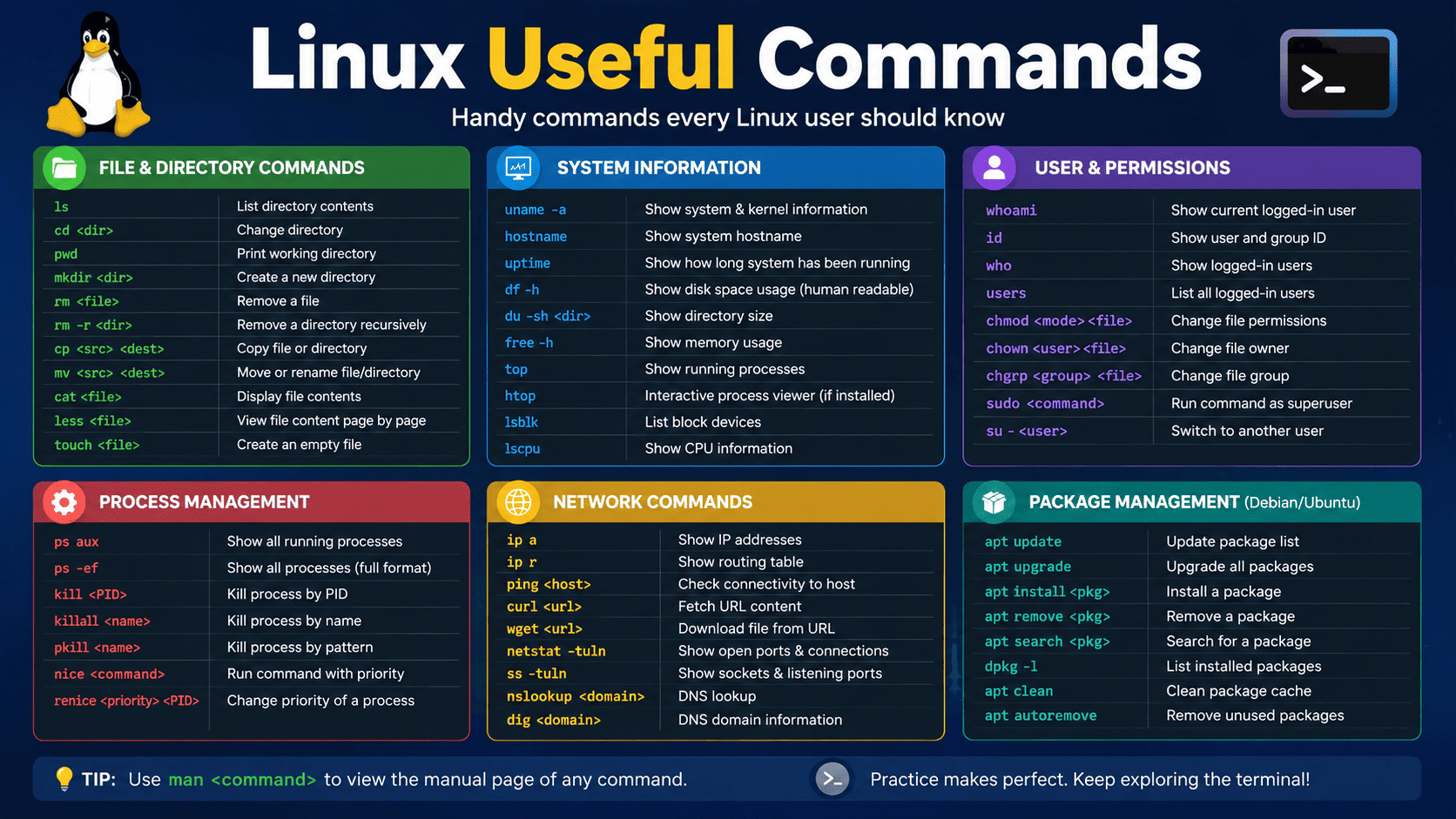
Useful Linux Commands at a Glance
| Command | Main Purpose |
|---|---|
pwd | Show current directory |
ls | List files |
cd | Change directory |
mkdir | Create directory |
touch | Create file |
cp | Copy files |
mv | Move or rename files |
rm | Delete files |
cat | Display file contents |
grep | Search text |
find | Find files |
df | Check disk space |
du | Check directory size |
free | Check RAM |
top | Monitor processes |
chmod | Change permissions |
chown | Change ownership |
tar | Archive/extract files |
curl | Test URLs/API requests |
wget | Download files |
ping | Test network connectivity |
ss | View network sockets |
dig | Check DNS |
systemctl | Manage services |
journalctl | View system logs |
ssh | Connect to remote server |
sudo | Run administrative commands |
Final Thoughts
Linux commands provide direct control over a server and are an essential skill for VPS administrators, developers, system administrators, and web hosting professionals. You do not need to memorize every command. Instead, learn the commands you frequently use for file management, permissions, networking, resource monitoring, services, and troubleshooting.
Before running a potentially destructive command on a production server, verify exactly what it will do and maintain reliable backups. A few seconds of checking can prevent hours of recovery work.