
WordPress Optimization Tricks for a Faster-Loading Website
Website speed is no longer just a technical concern. Visitors expect pages to load quickly, and a slow website can lead to higher bounce rates, lower engagement, and a frustrating browsing experience.
Fortunately, you don’t need an expensive server or complicated optimization setup to make WordPress faster. With the right combination of hosting, caching, image optimization, lightweight design, and smart plugin management, you can significantly improve your site’s performance.
Here are some practical WordPress optimization tricks that can help your website load faster.
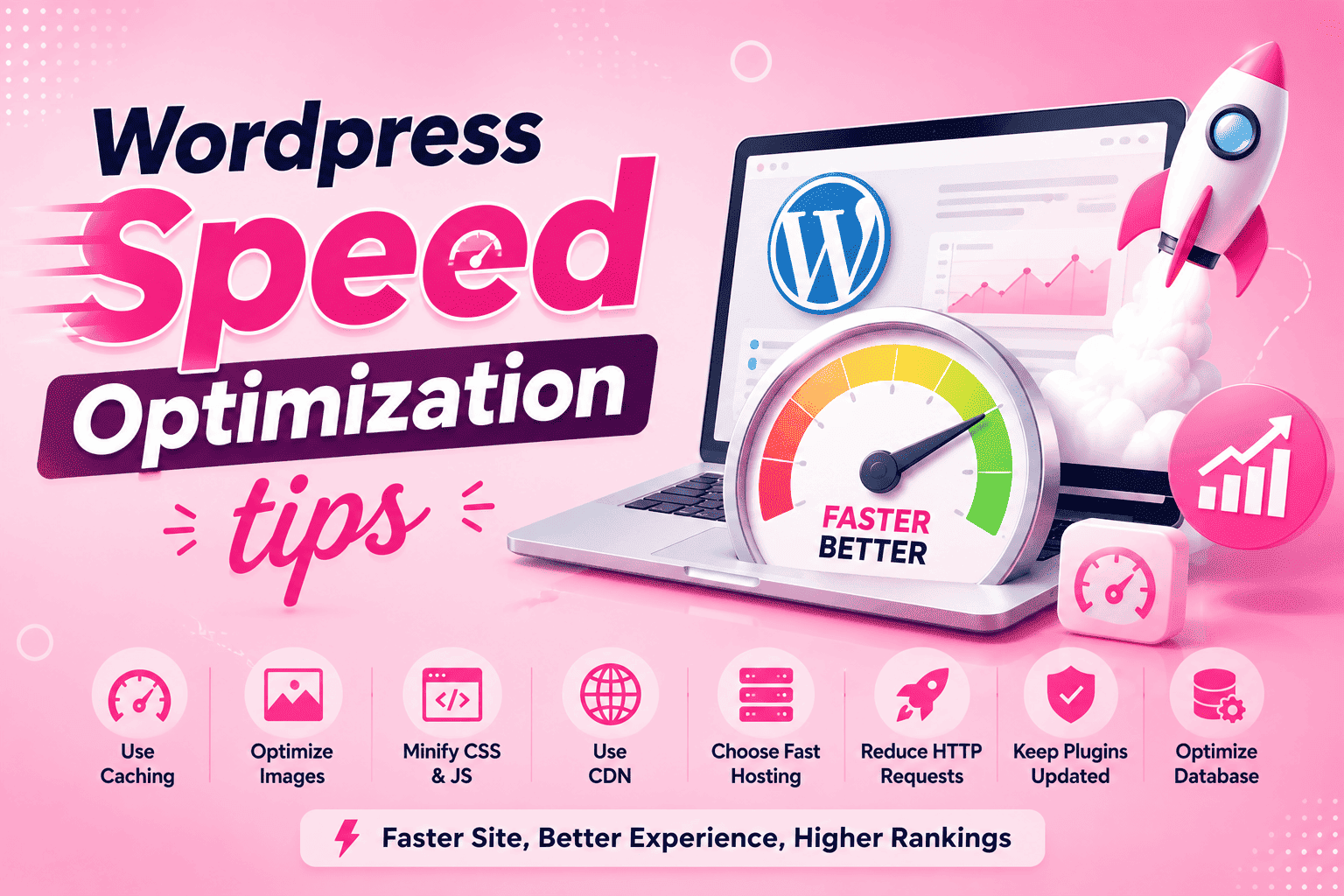
1. Choose Fast and Reliable WordPress Hosting
Your hosting environment is the foundation of your website’s performance.
Even a perfectly optimized WordPress website can feel slow if it is hosted on an overloaded or poorly configured server.
When choosing hosting, look for:
- SSD or NVMe storage
- Adequate CPU and RAM
- Modern PHP versions
- HTTP/2 or HTTP/3 support
- Reliable caching technology
- Good server connectivity
- Automated backups
- CDN compatibility
- WordPress-friendly server configuration
For growing websites, a quality VPS or managed WordPress hosting environment may provide more consistent resources than very low-cost shared hosting.
2. Use a Caching Plugin
Caching is one of the easiest ways to improve WordPress performance.
Without caching, WordPress may need to process PHP code and query the database whenever someone visits a page. A caching system can store a ready-to-serve version of frequently requested content.
Popular caching options include:
- LiteSpeed Cache
- WP Super Cache
- W3 Total Cache
- WP-Optimize
- Cache Enabler
Your best choice depends on your hosting environment. For example, LiteSpeed Cache can provide particularly deep integration when your server uses LiteSpeed Web Server or OpenLiteSpeed.
Avoid installing multiple full-featured caching plugins simultaneously, as their optimization features can conflict.
3. Optimize Your Images
Large images are one of the most common reasons WordPress pages become unnecessarily heavy.
Uploading a 5 MB photograph when the visitor only needs a 200 KB version wastes bandwidth and increases loading time.
Before uploading images:
- Resize them to an appropriate display size.
- Compress them.
- Use modern formats such as WebP or AVIF when appropriate.
- Avoid uploading unnecessarily high-resolution images.
Plugins and services such as Smush, ShortPixel, Imagify, and EWWW Image Optimizer can help automate image optimization.
4. Enable Lazy Loading
Not every image needs to load immediately.
If an article contains 20 images, loading all of them before the visitor can see the first screen wastes resources.
Lazy loading allows images and certain other media to load when they approach the visitor’s viewport.
WordPress already includes native lazy-loading support for many images, but optimization plugins can provide additional controls.
The goal isn’t to lazy-load everything blindly. Important above-the-fold images may need to load immediately to avoid delaying the visible content.
5. Use a Content Delivery Network
A Content Delivery Network (CDN) stores or serves website resources through locations distributed around the world.
When a visitor requests your website, a nearby CDN location can often deliver cached static resources instead of sending every request back to your origin server.
CDNs can help with:
- Images
- CSS files
- JavaScript
- Fonts
- Static website assets
Popular options include Cloudflare and other commercial CDN providers.
A CDN is particularly useful if your visitors are spread across different countries or regions.
6. Keep Your WordPress Theme Lightweight
Your theme can have a major impact on page size.
Some themes include dozens of animations, sliders, widgets, page-builder integrations, tracking scripts, and design features that you may never use.
For a fast blog, consider a theme that prioritizes:
- Clean code
- Minimal JavaScript
- Efficient CSS
- Responsive design
- Good accessibility
- Proper typography
- Performance-conscious development
A simple theme can often outperform a heavily customized design packed with unnecessary effects.
7. Remove Unnecessary Plugins
More plugins don’t automatically mean a slower website, but unnecessary or poorly optimized plugins can add extra database queries, CSS, JavaScript, API requests, or background tasks.
Review your installed plugins regularly.
Ask yourself:
Does this plugin provide a feature my website actually needs?
If the answer is no, deactivate and remove it after confirming that nothing depends on it.
Also avoid using multiple plugins for the same job. For example, you generally don’t need three different SEO plugins or several competing caching systems.
8. Optimize CSS and JavaScript
CSS and JavaScript files can increase page size and affect how quickly a browser can render a page.
Performance plugins can often:
- Minify CSS
- Minify JavaScript
- Combine selected files
- Delay non-critical JavaScript
- Remove unused CSS in some configurations
However, aggressive optimization can sometimes break website functionality.
After changing optimization settings, test:
- Homepage
- Blog posts
- Contact forms
- Menus
- Search
- Mobile layout
- Login pages
- Shopping functionality, if applicable
Performance optimization should never come at the expense of a broken website.
9. Reduce Third-Party Scripts
Third-party services are frequently overlooked when optimizing WordPress.
Examples include:
- Advertising scripts
- Analytics tools
- Social media widgets
- Live chat
- Embedded videos
- Heatmaps
- Tracking pixels
- External fonts
Each external service can introduce additional network requests and processing.
Keep only the services that provide real value to your website.
If you use several marketing and analytics tools, periodically review whether you still need all of them.
10. Optimize Your WordPress Database
Over time, your WordPress database can accumulate unnecessary information such as:
- Post revisions
- Spam comments
- Trashed content
- Expired temporary data
- Unused metadata
- Plugin-related leftovers
Database optimization tools can help clean up certain types of unnecessary data.
Plugins such as WP-Optimize can assist with database maintenance, although you should always maintain a reliable backup before performing significant database cleanup.
11. Use the Latest Stable PHP Version
WordPress relies heavily on PHP, so your PHP version can influence both performance and security.
Using an outdated PHP version can result in:
- Lower performance
- Compatibility problems
- Security concerns
- Reduced support
Before upgrading PHP, confirm that your WordPress version, theme, and plugins are compatible.
If your hosting provider offers a PHP version manager, you can usually change the version through your hosting control panel.
12. Use Browser Caching
Browser caching tells a visitor’s browser that certain static files can be stored locally for a specified period.
For example, if a visitor loads your logo and stylesheet today, the browser may not need to download those same files again immediately.
This can reduce repeat requests and improve performance for returning visitors.
Caching policies should be configured carefully, particularly for files that change frequently.
13. Optimize Fonts
Custom fonts can make a website look great, but excessive font files can slow down the initial page load.
Instead of loading multiple font families with numerous weights, use only the styles you actually need.
For example, a blog may only need:
- Regular
- Medium
- Bold
You can also consider hosting fonts locally when appropriate and using modern font-loading techniques.
14. Avoid Excessive Page Builders
Page builders can make website design easier, but complex pages can sometimes generate additional HTML, CSS, and JavaScript.
This doesn’t mean you should never use a page builder.
Instead, avoid creating unnecessarily complicated layouts containing dozens of nested sections and widgets.
For a content-focused blog, a clean WordPress block-based layout may be sufficient for many pages.
15. Optimize the Homepage
Your homepage is often one of the most frequently visited pages on a website.
Avoid loading everything at once.
Instead of displaying 50 full blog posts, consider showing:
- Featured articles
- Post excerpts
- Optimized thumbnails
- Selected categories
- Popular posts
A simpler homepage can reduce the amount of content that needs to be downloaded and rendered.
16. Don’t Upload Videos Directly to WordPress Unless Necessary
Videos can be extremely large.
Uploading multiple high-resolution videos directly to your WordPress server can consume storage and bandwidth while increasing server workload.
For many blogs, it’s more efficient to use a specialized video platform and embed the content.
If you do host videos yourself, make sure your server and bandwidth capacity are appropriate for the expected traffic.
17. Optimize Your WordPress Comments
Comment systems can generate database activity and additional requests.
If your blog receives significant amounts of spam, use a reputable anti-spam solution and moderate comments regularly.
You can also disable comments on content where discussion isn’t necessary.
For very large websites, consider whether the default WordPress commenting system is still the best solution for your audience.
18. Keep WordPress, Themes, and Plugins Updated
Updates aren’t only about adding new features.
They can also include:
- Performance improvements
- Security fixes
- Compatibility updates
- Bug fixes
- Better support for newer technologies
Keep WordPress core, themes, and plugins updated, but create reliable backups and test important updates when possible.
19. Use a Performance Testing Tool
Don’t optimize your website based only on how fast it feels on your own computer.
Use performance testing tools such as:
- Google PageSpeed Insights
- GTmetrix
- WebPageTest
- Chrome Lighthouse
These tools can reveal problems involving images, caching, JavaScript, CSS, server response time, and other performance factors.
More importantly, test your website before and after making major changes so you can see whether your optimization actually helped.
20. Focus on Core Web Vitals
Google’s Core Web Vitals provide useful measurements related to real-world page experience.
Important metrics include:
Largest Contentful Paint (LCP)
Measures how quickly the main content becomes visible.
Interaction to Next Paint (INP)
Measures how responsive a page is to user interactions.
Cumulative Layout Shift (CLS)
Measures unexpected movement of page content while it loads.
Improving these metrics often requires looking beyond simple page-size reduction and addressing how the browser loads, renders, and responds to the page.
A Simple WordPress Speed Optimization Checklist
If you’re not sure where to begin, follow this basic sequence:
Step 1: Choose reliable hosting
Step 2: Install an appropriate caching solution
Step 3: Compress and resize images
Step 4: Use WebP or AVIF where suitable
Step 5: Remove unnecessary plugins
Step 6: Use a lightweight theme
Step 7: Reduce third-party scripts
Step 8: Optimize CSS and JavaScript carefully
Step 9: Use a CDN when beneficial
Step 10: Keep WordPress and PHP updated
Step 11: Test Core Web Vitals
Step 12: Monitor performance regularly
Final Thoughts
A fast WordPress website isn’t created by activating one “magic” optimization plugin. Performance usually comes from several small improvements working together.
Start with the biggest sources of delay: hosting, images, caching, theme complexity, plugins, third-party scripts, and server configuration.
Most importantly, don’t blindly enable every optimization option available. A setting that makes one website faster can cause problems on another.
Measure your website, make one change at a time, test the result, and keep the configuration that provides a real improvement.
The fastest WordPress website is usually not the one with the most optimization features—it’s the one that delivers only what visitors actually need, as efficiently as possible.