
Why Regular Backups Can Save Your Website From Disaster
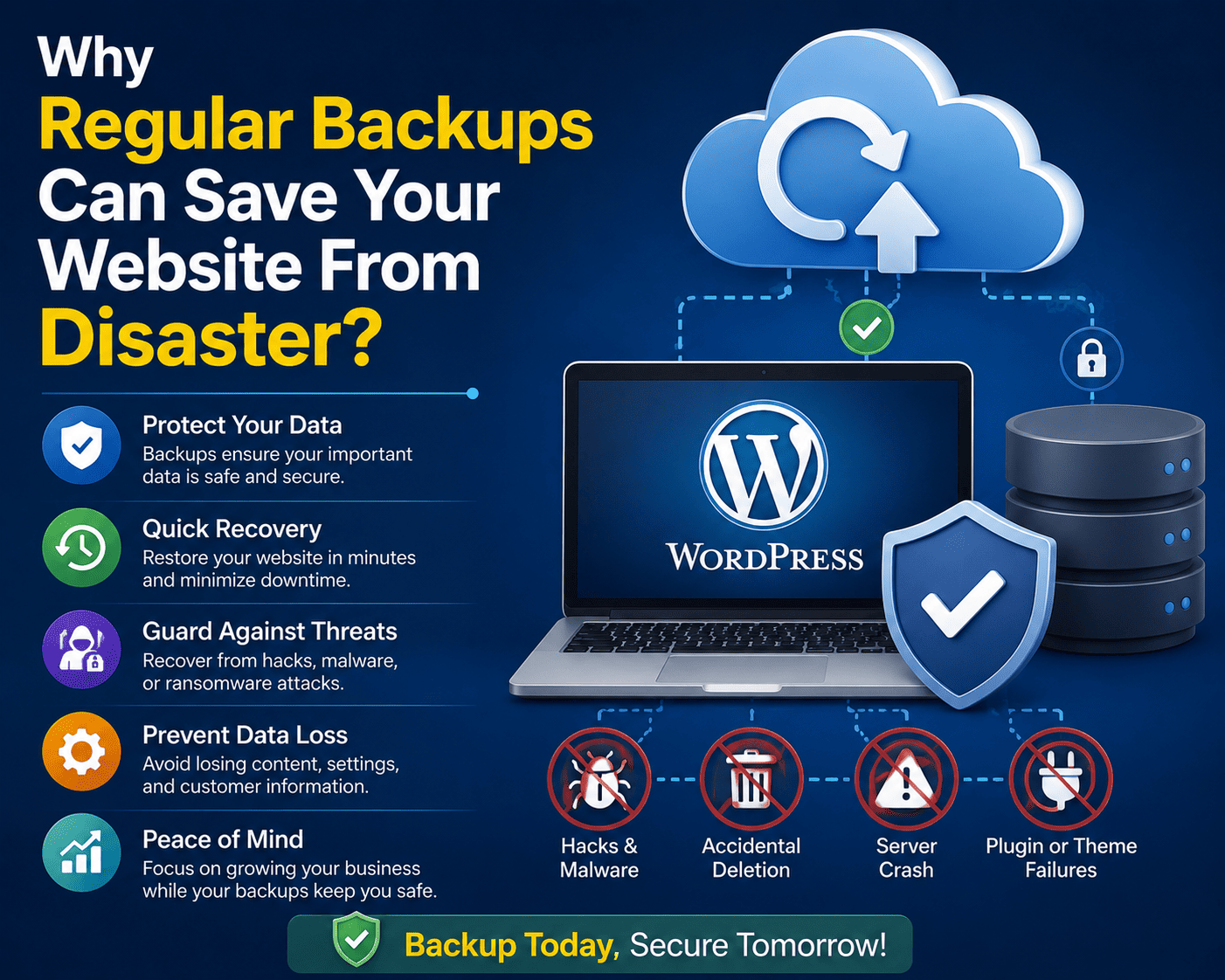
Your website may be working perfectly today, but that doesn’t mean it will always be safe. A failed update, accidental deletion, server problem, malware infection, or simple human mistake can make important website data disappear in minutes.
For WordPress website owners, regular backups are one of the most important parts of website maintenance. A backup gives you a way to restore your website when something goes wrong instead of having to rebuild everything from scratch.
What Is a Website Backup?
A website backup is a separate copy of the important files and data required to restore your website.
For a WordPress website, a complete backup generally includes:
- WordPress core files
- Themes
- Plugins
- Uploaded images and media
- WordPress database
- Configuration files
- Other important website files
Having only a copy of your website files may not be enough. The database contains important information such as posts, pages, users, settings, comments, and other WordPress data.
A reliable backup strategy should therefore protect both your files and database.
1. Protection Against Accidental Deletion
Mistakes happen.
You might accidentally delete:
- An important page
- A plugin
- Images
- Website files
- Database records
Without a recent backup, recovering deleted information can be extremely difficult or even impossible.
With a backup available, you can restore the affected data and get your website back online much faster.
2. Recover From Failed WordPress Updates
Keeping WordPress updated is important for security, but updates can occasionally cause compatibility problems.
A new plugin version might conflict with your theme. A theme update could interfere with custom functionality. An update might also fail because of server limitations.
Creating a backup before major updates gives you a safety net.
If something breaks, you can restore the previous working version instead of spending hours trying to repair the website immediately.
3. Protect Your Website From Malware
WordPress websites can become targets for malware, malicious scripts, spam injections, and unauthorized access.
If an attacker compromises your website, simply removing the visible malicious code may not completely solve the problem. Hidden backdoors can remain on the server.
A clean backup from before the compromise can provide a much safer recovery option.
However, backups should not be considered a replacement for security. Website owners should combine backups with:
- Strong passwords
- Two-factor authentication
- Security monitoring
- Regular updates
- Secure hosting
- Malware scanning
4. Recover From Hosting Problems
Even reliable hosting infrastructure can experience unexpected problems.
Hardware failures, storage problems, software issues, configuration mistakes, or other server incidents can potentially affect your website.
If your only copy of the website exists on the same server, you may have limited recovery options.
Keeping independent backups gives you additional protection when your hosting environment becomes unavailable.
5. Protect Against Human Error
Human mistakes are one of the simplest reasons websites lose data.
For example, someone might accidentally:
- Delete a database table
- Remove an important file
- Change a configuration setting
- Overwrite website content
- Install incompatible software
A recent backup can turn a potentially serious mistake into a manageable problem.
6. Make Website Migration Easier
Backups are also useful when moving your website to a new hosting provider.
A complete backup can contain the files and database required to migrate your WordPress installation.
Although migration tools can simplify the process, having your own backup provides an additional safety net if something goes wrong during the transfer.
7. Restore Your Website Faster
When a website goes offline, time matters.
For a business website, every minute of downtime can mean:
- Lost visitors
- Missed sales
- Lost leads
- Customer frustration
- Damage to reputation
A tested backup can significantly reduce recovery time because you have a known copy of the website ready to restore.
8. Backups Give You Peace of Mind
One of the biggest benefits of regular backups is confidence.
You can experiment with:
- New plugins
- Themes
- Website designs
- Customizations
- WordPress updates
- New features
knowing that you have a recovery option if something goes wrong.
How Often Should You Back Up a WordPress Website?
There isn’t one backup schedule that works for every website.
Your backup frequency should depend on how often your website changes.
Static Website
If your website rarely changes, a weekly or periodic backup may be sufficient depending on your recovery requirements.
Blog
If you publish several articles each week, backing up more frequently can help minimize potential data loss.
Online Store
E-commerce websites change constantly through orders, customers, products, and payments. Frequent or automated backups are especially important.
High-Traffic Website
Websites with frequent content changes should consider a backup strategy designed to minimize the amount of data that could be lost between backups.
The key concept is your Recovery Point Objective (RPO)—how much recent data you can afford to lose.
Use Automated Backups
Manual backups are easy to forget.
Automated backup systems can create backups according to a predefined schedule without requiring you to remember to perform them manually.
Popular WordPress backup solutions include plugins and hosting-based backup systems. Your hosting provider may also provide automatic backups as part of your hosting plan.
Before relying on a backup system, understand:
- How frequently backups are created
- How many backup copies are retained
- Where backups are stored
- How long they are kept
- Whether database backups are included
- How restoration works
Don’t Keep Every Backup on the Same Server
This is one of the most important backup rules.
If your website and all of its backups are stored on the same server, a serious server-level problem could potentially affect both.
Consider keeping copies in an independent storage location such as reputable cloud or remote storage.
A simple strategy is the 3-2-1 backup approach:
3 copies of your important data
2 different types of storage or locations
1 copy stored off-site
This provides significantly better protection than maintaining a single backup.
Test Your Backups Regularly
A backup that has never been tested should not automatically be considered reliable.
A backup may appear to exist but still have problems such as:
- Corrupted files
- Incomplete database data
- Missing media
- Incorrect configuration
- Failed restoration process
Periodically perform a test restoration in a staging environment or another safe location.
The real goal isn’t simply “having a backup.”
The goal is being able to answer:
“Can I successfully restore my website if it fails today?”
Keep Multiple Backup Versions
Don’t always overwrite your previous backup with a new one.
Keeping multiple restore points can be extremely useful.
For example, if a website becomes infected and the problem isn’t discovered for several days, the newest backup may already contain the problem.
Multiple backup versions give you more choices when selecting a clean restore point.
What Should You Back Up?
For a WordPress website, your backup strategy should generally include:
WordPress Database
Contains posts, pages, users, comments, settings, and other dynamic information.
Website Files
Includes WordPress files, themes, plugins, and uploaded media.
Configuration Files
Important configuration files may include wp-config.php and server-related configuration files.
Custom Content
If your website contains custom scripts, special configurations, or other manually added files, make sure these are included.
What to Do After a Website Disaster
If your website suddenly stops working, avoid making random changes that could make recovery harder.
A sensible recovery process is:
- Identify what caused the problem.
- Stop unnecessary changes to the affected website.
- Select a known-good backup.
- Restore the website files and database.
- Test the website thoroughly.
- Change credentials if unauthorized access is suspected.
- Update vulnerable software.
- Investigate the original cause.
- Strengthen security and backup procedures.
If the problem involves malware or a serious server compromise, professional assistance may be appropriate.
WordPress Backup Checklist
Use this checklist to evaluate your current backup strategy:
✓ WordPress files are backed up
✓ Database is backed up
✓ Backups run automatically
✓ Backups are stored separately
✓ Multiple restore points are available
✓ Backups are retained for an appropriate period
✓ Restoration has been tested
✓ Backup notifications are monitored
✓ Critical website changes trigger additional backups
✓ Recovery procedures are documented
Final Thoughts
A website backup may seem unimportant when everything is working normally. Its value becomes obvious when something suddenly goes wrong.
A failed update, malware infection, accidental deletion, hosting problem, or human mistake can happen without warning. With a reliable and tested backup system, these incidents don’t necessarily have to become disasters.
Don’t wait until your website is broken to discover that your backup doesn’t work.
Make backups automatic, keep copies in separate locations, maintain multiple restore points, and test the restoration process regularly. For a WordPress website, a good backup strategy isn’t an optional extra—it’s an essential part of responsible website management.