
Managing Web Hosting with cPanel: A Complete Guide
Managing a web hosting account can seem complicated when you are new to servers, domains, databases, and website files. cPanel makes these tasks much easier by providing a graphical control panel where you can manage many aspects of your hosting account without relying entirely on command-line tools.
Whether you are hosting a WordPress website, business website, blog, or online store, understanding the essential cPanel features can help you maintain your website efficiently.
What Is cPanel?
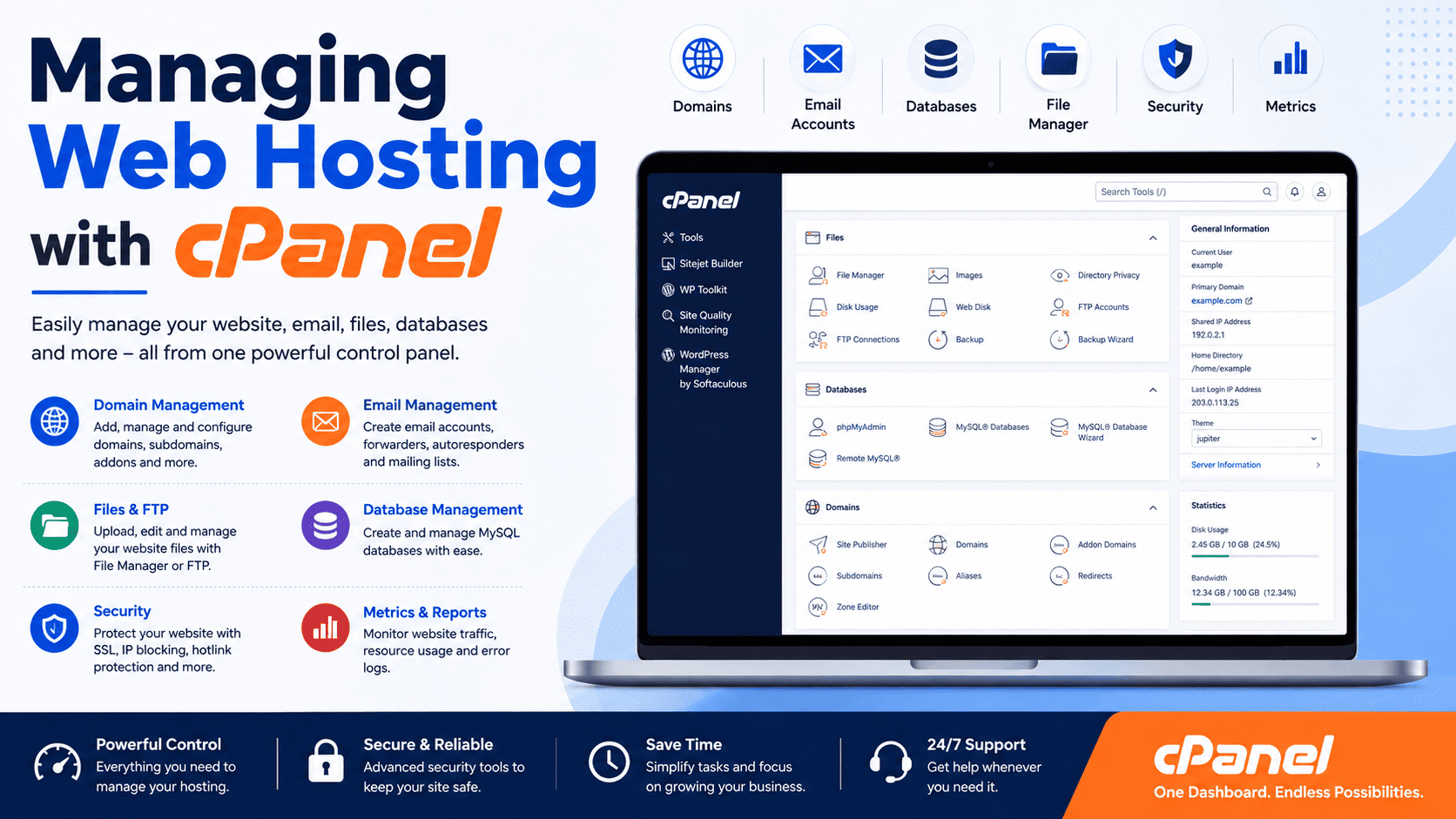
cPanel is a web-based hosting control panel designed to simplify website and server management. Instead of entering Linux commands for every task, users can perform common hosting operations through an intuitive interface.
Depending on the hosting provider and plan, cPanel may allow you to manage:
- Websites and domains
- Files and folders
- Email accounts
- Databases
- SSL certificates
- Backups
- DNS records
- FTP accounts
- Security settings
- Resource usage
- Software installations
The exact features available can vary depending on your hosting provider’s configuration.
1. Accessing Your cPanel Account
Your hosting provider normally provides a cPanel login address and account credentials after you purchase a hosting plan.
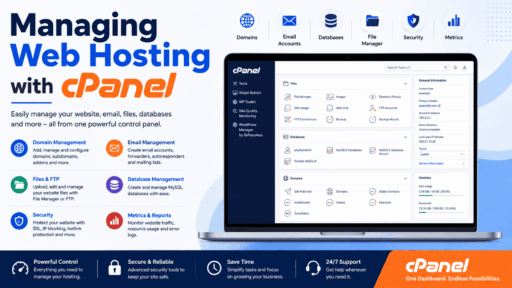
Once logged in, the dashboard provides access to different management sections.
Before making changes, familiarize yourself with areas such as:
- Files
- Domains
- Databases
- Security
- Metrics
- Software
- Backup
The dashboard acts as a central location for managing your hosting account.
2. Managing Website Files
The File Manager is one of the most useful cPanel features. It lets you upload, download, edit, rename, move, copy, and delete website files directly from your browser.
Your website’s main files are commonly stored inside a directory such as:
public_html/
For example:
public_html/
├── index.html
├── wp-config.php
├── images/
├── css/
└── js/
The exact structure depends on the application installed on your website.
Useful File Manager Tasks
You can use File Manager to:
- Upload website files
- Create folders
- Rename files
- Edit configuration files
- Extract ZIP archives
- Create compressed backups
- Change file permissions
Always be careful when deleting or modifying files, particularly configuration files.
3. Adding and Managing Domains
cPanel can provide tools for managing multiple domains, depending on your hosting plan.
You may be able to add:
- Additional domains
- Subdomains
- Domain aliases
- Redirects
For example, a subdomain could be:
blog.example.com
while the primary website might be:
example.com
When adding a domain, make sure its DNS records point to the appropriate hosting server.
4. Creating Subdomains
Subdomains are useful when you want to create separate sections of a website.
Examples include:
blog.example.com
shop.example.com
support.example.com
A subdomain can point to a specific directory or application depending on your hosting configuration.
For example, you might use:
blog.example.com
for a separate blog installation while keeping the main website at:
example.com
5. Managing DNS Records
DNS connects domain names with internet services.
Through cPanel’s DNS management tools, you may be able to create or modify records such as:
- A
- AAAA
- CNAME
- MX
- TXT
Example
An A record can point a domain or hostname toward an IPv4 address.
A CNAME can point one hostname to another hostname.
MX records determine where email for a domain should be delivered.
TXT records can be used for verification and email authentication technologies such as SPF and other domain verification records.
DNS changes can take some time to propagate, so avoid repeatedly changing records simply because the update is not immediately visible.
6. Creating Email Accounts
If your hosting plan includes email services, cPanel can make it easy to create professional email addresses.
For example:
[email protected]
[email protected]
[email protected]
You can usually manage:
- Email accounts
- Passwords
- Storage limits
- Forwarders
- Auto responders
- Spam filtering
Professional email addresses can help businesses maintain a consistent brand identity.
7. Managing SSL Certificates
An SSL/TLS certificate allows your website to use HTTPS.
Instead of:
http://example.com
your website can use:
https://example.com
Many hosting providers offer automatic SSL installation or certificate management through cPanel.
After enabling SSL, test your website carefully to ensure that pages, images, scripts, and other resources load securely.
8. Installing WordPress
Many cPanel hosting environments provide a software installer that can simplify WordPress installation.
Instead of manually uploading WordPress files and creating a database, an installer may guide you through:
- Selecting the domain.
- Choosing the installation directory.
- Creating administrator credentials.
- Selecting basic configuration options.
- Completing the installation.
After installation, WordPress can be managed from its own administration dashboard.
Always use strong administrator credentials and keep WordPress, themes, and plugins updated.
9. Managing MySQL Databases
Dynamic applications such as WordPress commonly rely on databases.
cPanel may provide tools for:
- Creating databases
- Creating database users
- Assigning permissions
- Managing database settings
- Opening phpMyAdmin
For example, a WordPress installation typically uses a MySQL-compatible database to store posts, users, settings, comments, and other information.
Important Tip
Do not randomly modify database tables if you are unfamiliar with database administration. Create a backup before making significant database changes.
10. Using phpMyAdmin
phpMyAdmin provides a web interface for managing MySQL or compatible databases.
You can use it to:
- Browse tables
- Search records
- Export databases
- Import databases
- Run SQL queries
- Repair certain database issues
Database changes should be performed carefully because an incorrect query can affect the functionality of your website.
11. Creating Backups
Backups are one of the most important parts of website management.
A useful backup strategy can protect your website against:
- Accidental deletion
- Plugin conflicts
- Malware incidents
- Failed updates
- Server problems
- Database corruption
Depending on your hosting provider, cPanel may offer backup and restore features.
A complete website backup may include:
- Website files
- Databases
- Email data
- DNS configuration
- Other hosting account information
Best Practice
Do not rely exclusively on a single backup stored on the same hosting server. Maintain additional copies in a separate, secure location.
12. Managing FTP Accounts
FTP or SFTP access can be useful when transferring files between your computer and hosting account.
cPanel can allow you to create separate FTP accounts with restricted directory access.
For example, you could provide a developer access to a specific website directory rather than the entire hosting account.
When possible, use secure file-transfer methods such as SFTP rather than unencrypted FTP.
13. Checking Website Resource Usage
Hosting accounts have limited resources. Depending on your hosting plan, these may include:
- CPU
- RAM
- Disk space
- Inodes
- Entry processes
- Database resources
- Bandwidth
cPanel’s metrics or resource sections can help you identify unusually high usage.
If your website suddenly becomes slow, checking resource usage can provide an important clue.
14. Monitoring Website Traffic
cPanel may provide traffic and visitor statistics through available metrics tools.
These statistics can help you understand:
- Number of visitors
- Requests
- Bandwidth usage
- Traffic patterns
- Frequently accessed resources
For more detailed visitor analytics, website owners often use dedicated analytics platforms.
15. Managing Cron Jobs
A cron job allows a task to run automatically at a scheduled time.
For example, an application might need to perform a task every hour:
Every hour → Run scheduled script
Cron jobs can be used for:
- Automated maintenance
- Data processing
- Scheduled application tasks
- Backup scripts
- Database operations
Be careful when configuring cron schedules. A script that runs too frequently can consume unnecessary server resources.
16. Managing Redirects
Redirects tell browsers and search engines that a URL should lead somewhere else.
A common example is a 301 redirect, which is generally used for a permanent URL change.
For example:
old-page.html → new-page.html
Redirects are useful when:
- Changing domain names
- Moving pages
- Updating URL structures
- Redirecting HTTP to HTTPS
- Removing outdated pages
Avoid creating redirect chains or loops because they can cause performance and accessibility problems.
17. Protecting Directories
Some cPanel environments provide directory privacy tools that allow you to protect specific folders with authentication.
This can be useful for areas such as:
/private/
/admin/
/test/
However, directory protection should complement—not replace—proper application-level security.
18. Managing File Permissions
Linux uses permissions to determine who can read, write, or execute files.
Incorrect permissions can cause problems such as:
- 403 Forbidden errors
- Upload failures
- Application errors
- Security vulnerabilities
Avoid setting excessively permissive permissions simply to make an application work. Instead, identify the specific file or directory that needs adjustment.
19. Checking Error Logs
When a website stops working, error logs can provide valuable information.
Depending on your hosting environment, you may find information about:
- PHP errors
- Server errors
- Missing files
- Permission problems
- Application failures
For example, a 500 Internal Server Error may be caused by a PHP problem, incorrect rewrite rules, or another server-side configuration issue.
Checking logs before changing multiple settings can make troubleshooting much faster.
20. Improving Website Performance
cPanel can help manage several components that affect website performance.
Depending on your hosting environment, you may have access to:
- Caching tools
- Compression settings
- PHP version selection
- CDN integration
- Database management
- Resource monitoring
You should also optimize the website itself by compressing images, reducing unnecessary plugins, minimizing heavy scripts, and keeping applications updated.
21. Changing PHP Versions
Many PHP-based applications require a specific PHP version.
cPanel may provide a PHP version manager that lets you select the version used by your website.
Before changing PHP versions:
- Check your application’s compatibility.
- Back up your website.
- Test the website after the change.
- Check plugins and themes for compatibility.
Never change the production PHP version blindly, particularly on an important business website.
22. Managing Security
Security should be part of regular cPanel administration.
Useful practices include:
- Use strong passwords.
- Enable HTTPS.
- Keep applications updated.
- Remove unused software.
- Limit unnecessary FTP accounts.
- Protect administrator accounts.
- Review suspicious files.
- Maintain regular backups.
- Monitor unusual resource usage.
- Use available firewall or security features.
If your hosting provider offers two-factor authentication for cPanel, enabling it can provide an additional layer of account protection.
23. A Simple cPanel Website Management Routine
A regular maintenance routine can prevent many problems.
Daily or Frequently
Check:
- Website availability
- Critical errors
- Unusual traffic
- Server resource usage
Weekly
Review:
- Backups
- Disk usage
- Security alerts
- Website updates
- Error logs
Monthly
Review:
- Unused files and accounts
- Database size
- Email storage
- Domains and subdomains
- SSL certificate status
- Hosting resource requirements
This routine can help identify small problems before they become major outages.
Common cPanel Problems and Quick Solutions
| Problem | Possible Cause | Recommended Action |
|---|---|---|
| Website shows 404 | Missing page or incorrect URL | Check files and redirects |
| 403 Forbidden | Permissions or access rules | Review permissions and .htaccess |
| 500 Error | PHP/application/server problem | Check error logs |
| Website is slow | High resource usage | Check CPU/RAM and optimize site |
| Email not working | DNS/MX configuration | Verify DNS and mail settings |
| SSL warning | Certificate or configuration issue | Check SSL status and HTTPS configuration |
| Disk full | Large files, backups, or emails | Review disk usage and remove unnecessary data |
| Database error | Database credentials or service issue | Verify database configuration |
| Upload fails | Permission or resource limit | Check permissions and hosting limits |
Final Thoughts
cPanel simplifies many web hosting tasks by putting essential server-management functions into a graphical interface. From managing domains and email accounts to creating databases, configuring SSL, monitoring resources, and maintaining backups, it can significantly reduce the technical complexity of running a website.
However, cPanel does not eliminate the need for good hosting practices. Regular backups, strong security, careful configuration, software updates, and resource monitoring remain essential for keeping a website stable and secure.
Once you understand the major cPanel sections and what each tool does, managing a Linux-based hosting account becomes much more straightforward—even without extensive command-line experience.