
DirectAdmin Panel: A Complete Guide to Managing Your Web Hosting Account
DirectAdmin is a lightweight and user-friendly web hosting control panel that allows website owners, developers, and hosting customers to manage websites, domains, email accounts, databases, files, security, and server resources from a single interface. Instead of performing every hosting task through complicated command-line instructions, DirectAdmin provides an easy graphical dashboard for everyday website management.
This detailed guide explains the most important DirectAdmin features and shows how to use them effectively.
1. Getting Started With DirectAdmin
After purchasing a hosting plan, your hosting provider normally gives you a DirectAdmin login URL along with your username and password.
Once you log in, you will see the main dashboard. Depending on your hosting provider and account permissions, the available options may differ.
The dashboard generally provides access to:
- Account and domain management
- File Manager
- Email accounts
- MySQL databases
- SSL certificates
- DNS management
- Backups
- FTP accounts
- Website statistics
- Resource usage
- Application and software management
The interface is designed to keep frequently used hosting tools within easy reach.
2. Understanding the DirectAdmin Dashboard
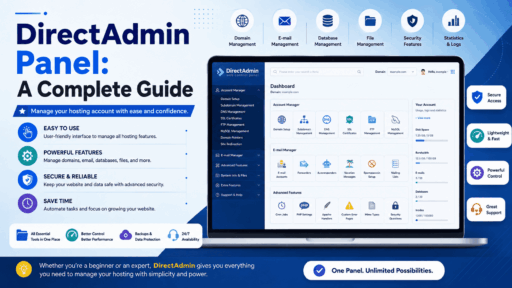
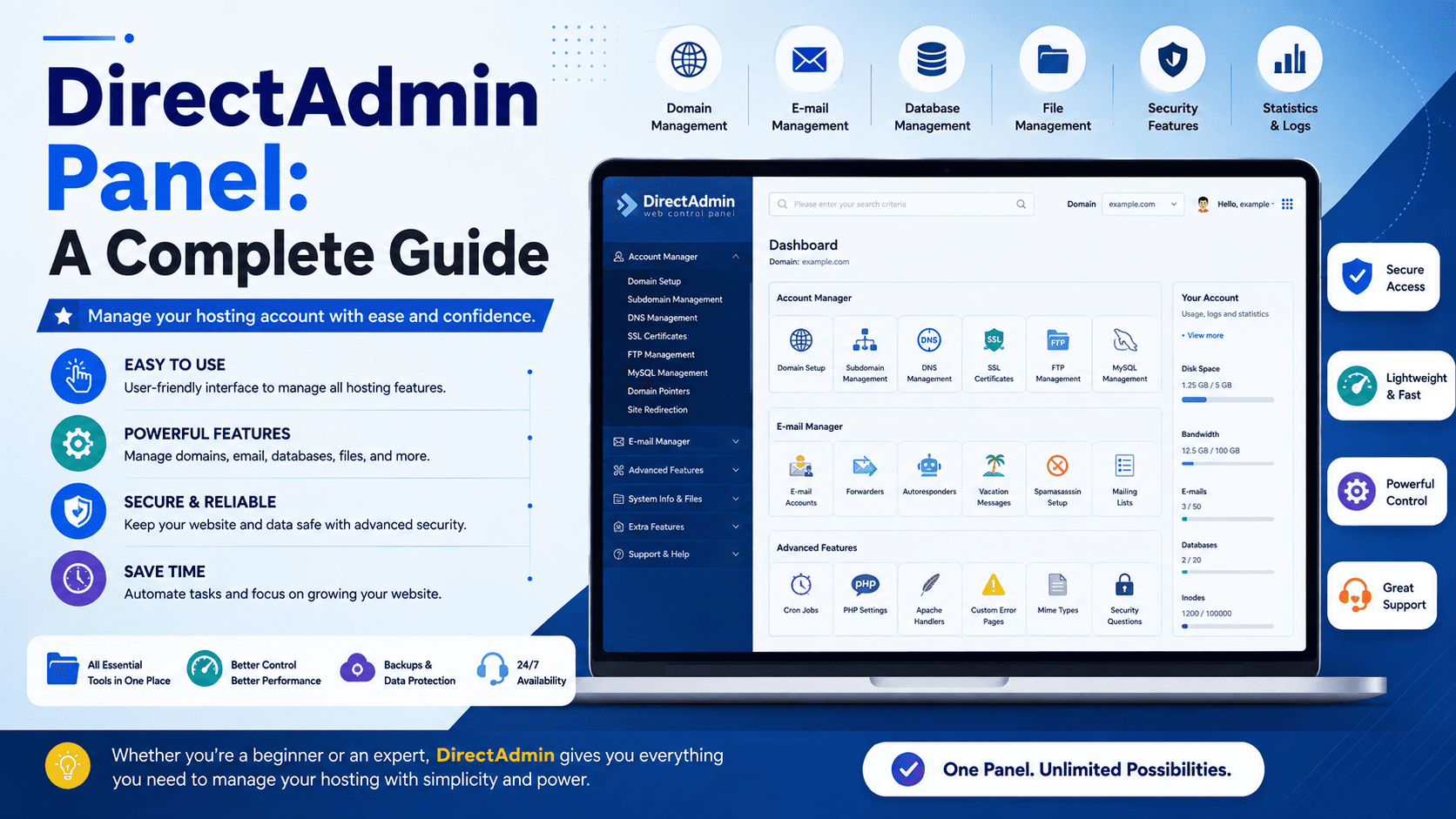
The DirectAdmin dashboard acts as the control center for your hosting account. It provides shortcuts to the services and resources available under your plan.
Common areas include:
Account Manager: Manage domains, SSL certificates, DNS settings, and other account-level features.
E-mail Manager: Create and manage email addresses, forwarders, autoresponders, and related settings.
Advanced Features: Access tools such as cron jobs, database management, cache management, and other advanced options.
System Info & Files: Manage files, FTP accounts, backups, and account information.
The exact layout can vary depending on the DirectAdmin theme and hosting provider.
3. Adding a Domain
One of the first tasks after purchasing hosting is connecting your domain to the hosting account.
Steps
- Log in to DirectAdmin.
- Open the Domain Setup or domain-management section.
- Select the option to add a domain.
- Enter your domain name.
- Configure the available bandwidth or storage limits if your hosting plan provides these options.
- Save the configuration.
After adding the domain, you must make sure its DNS records point to the correct hosting server.
If your domain was purchased from a different registrar, you may need to update its nameservers or DNS records at the registrar.
4. Managing Website Files With File Manager
DirectAdmin’s File Manager allows you to upload, download, edit, rename, move, copy, and delete website files without using a separate FTP application.
Your website’s files are commonly stored inside the domain’s public web directory.
Typical website files may include:
index.htmlindex.php- CSS files
- JavaScript files
- Images
- WordPress files
- Configuration files
Uploading Files
- Open File Manager.
- Navigate to your website’s document root.
- Select Upload Files.
- Choose the files from your computer.
- Wait for the upload to finish.
- Confirm that the files are located in the correct directory.
Make sure your homepage file is placed in the correct document root; otherwise, visitors may not see your website.
5. Creating an FTP Account
FTP can be useful when you regularly transfer large numbers of files between your computer and hosting account.
To create an FTP account:
- Open FTP Management.
- Choose Create FTP Account.
- Enter the desired username.
- Set a strong password.
- Select the appropriate directory or access level.
- Save the account.
For security, avoid giving an FTP account access to directories that the user does not need.
6. Creating MySQL Databases
Many dynamic websites, including WordPress and other PHP applications, require a database.
DirectAdmin allows you to create and manage MySQL databases through its database management tools.
Basic Process
- Open MySQL Management.
- Select Create New Database.
- Enter a database name.
- Create or assign a database user.
- Set a strong password.
- Grant the required privileges.
- Save the configuration.
Keep your database credentials secure because applications use them to connect to the database.
7. Installing WordPress
If your hosting provider offers an application installer, you may be able to install WordPress directly from DirectAdmin.
The general installation process is:
- Open the available application installer.
- Select WordPress.
- Choose the domain where you want to install it.
- Select the installation directory.
- Enter the website title and administrator details.
- Create a strong administrator password.
- Start the installation.
If an automatic installer is unavailable, WordPress can also be installed manually by uploading its files, creating a database, and completing the installation through your browser.
8. Creating Email Accounts
DirectAdmin makes it possible to create professional email addresses using your own domain.
For example:
Creating an Email Address
- Open E-mail Accounts.
- Select Create Account.
- Choose the domain.
- Enter the mailbox name.
- Create a strong password.
- Set the mailbox quota if available.
- Save the account.
You can then access the mailbox through webmail or configure it in an email application such as Outlook, Thunderbird, or a mobile email client.
9. Managing Email Forwarders
An email forwarder automatically sends messages received at one address to another email account.
For example:
[email protected] → [email protected]
This can be useful when you want multiple addresses without maintaining separate inboxes.
Open the email-management section, select Forwarders, create the source address, specify the destination address, and save the configuration.
10. Setting Up Autoresponders
Autoresponders automatically send a predefined message when someone emails a particular address.
They can be useful for:
- Vacation notices
- Support acknowledgments
- Business-hour information
- Confirmation messages
- Temporary service notifications
When creating an autoresponder, specify the email address, subject, message, and any available scheduling options.
11. Managing SSL Certificates
An SSL certificate protects communication between visitors and your website by enabling HTTPS.
A secure website normally uses:
rather than:
http://example.com
If your hosting provider provides free SSL certificates, DirectAdmin may allow you to enable or manage SSL directly from the panel.
After activating SSL, test your website using HTTPS and check that important resources are also loading securely.
12. Managing DNS Records
DNS connects your domain name with different services and servers.
DirectAdmin may provide DNS management options for records such as:
- A — Points a hostname to an IPv4 address.
- AAAA — Points a hostname to an IPv6 address.
- CNAME — Creates an alias for another hostname.
- MX — Specifies mail servers.
- TXT — Stores text-based information such as verification and email-security records.
- NS — Specifies authoritative nameservers.
DNS changes can take time to propagate, so avoid repeatedly changing records when a new configuration has not yet become visible everywhere.
13. Creating Subdomains
Subdomains allow you to create separate sections of a website.
For example:
blog.example.comshop.example.comsupport.example.com
To create one, open the subdomain management option, enter the desired subdomain name, select its document root if required, and save it.
Subdomains can be useful for blogs, applications, testing environments, customer portals, and support systems.
14. Creating Cron Jobs
Cron Jobs allow automated tasks to run at scheduled times.
They can be used for:
- Automated scripts
- Database maintenance
- Scheduled reports
- Cache cleanup
- Application tasks
- Automated backups
For example, a script could be configured to run once per day.
Before creating a cron job, understand what the command does. Incorrect cron configurations can consume server resources or repeatedly execute unwanted tasks.
15. Creating Backups
Backups are one of the most important features of any hosting account.
Depending on your hosting provider, DirectAdmin may allow you to back up:
- Website files
- Databases
- Email accounts
- Domain settings
- Account configuration
A good backup strategy should include multiple copies stored in different locations.
Do not assume that having a backup option in DirectAdmin means your website is automatically protected. Check your hosting provider’s backup policy, retention period, and restoration procedure.
16. Monitoring Disk Space and Bandwidth
Hosting accounts usually have resource limits.
DirectAdmin can provide information about resource consumption, depending on the hosting configuration.
Monitor:
- Disk usage
- Bandwidth
- Number of domains
- Email storage
- Database usage
- File count
- Other account limits
If your disk usage suddenly increases, look for large backups, log files, media files, email attachments, or unnecessary application files.
17. Checking Website Statistics
Website statistics can help you understand how your hosting account is being used.
Depending on your hosting setup, you may have access to information such as:
- Visitor activity
- Traffic volume
- Bandwidth consumption
- Requested pages
- Error requests
- Referring websites
For detailed marketing and SEO analysis, dedicated analytics platforms may provide more comprehensive information.
18. Managing Error Pages
Websites can display error pages when requested resources are unavailable or when the server encounters a problem.
Common HTTP errors include:
- 400 — Bad Request
- 401 — Unauthorized
- 403 — Forbidden
- 404 — Page Not Found
- 500 — Internal Server Error
- 502 — Bad Gateway
- 503 — Service Unavailable
A customized error page can provide visitors with useful navigation instead of showing a generic server message.
19. Managing File Permissions
File permissions determine who can read, modify, or execute files.
Incorrect permissions can cause:
- Website errors
- Upload failures
- Security vulnerabilities
- Application installation problems
Avoid changing permissions randomly. Use the permissions recommended by your application’s documentation or hosting provider.
For Linux-based hosting, commonly used permissions may differ depending on the file type and server configuration.
20. Using the DirectAdmin Terminal
Some DirectAdmin installations provide terminal access.
Terminal access allows experienced users to perform advanced tasks using Linux commands.
For example:
pwd
ls
cd
mkdir
cp
mv
rm
chmod
chown
Terminal access should be used carefully because commands can modify or delete files immediately.
If you are unfamiliar with Linux, use DirectAdmin’s graphical tools whenever possible.
21. Securing Your DirectAdmin Account
Your hosting control panel is a critical part of your website infrastructure, so protecting it is essential.
Follow these practices:
- Use a long, unique password.
- Enable two-factor authentication if available.
- Avoid sharing your DirectAdmin credentials.
- Use separate FTP accounts for different users.
- Remove unused accounts.
- Keep website applications updated.
- Install security updates when provided by your hosting provider.
- Use HTTPS whenever possible.
- Regularly review account activity and resource usage.
- Maintain reliable backups.
22. Common DirectAdmin Problems and Solutions
Website Shows a 404 Error
Check whether the requested file exists and whether the domain is pointing to the correct document root.
Website Shows a 403 Error
Check file permissions, directory permissions, index files, and server access rules.
Website Shows a 500 Error
A 500 error can result from PHP problems, incorrect configuration, application errors, or incompatible server settings. Review the relevant error logs and recently changed configuration.
Email Is Not Sending
Check your email account settings, MX records, mailbox limits, authentication settings, and whether the server has any email restrictions.
Domain Is Not Working
Verify that the domain has been added to DirectAdmin and that its DNS records or nameservers point to the correct hosting service.
Website Is Slow
Check resource usage, application performance, database activity, large files, plugins, and server load. A hosting upgrade may be necessary if the account consistently reaches its resource limits.
23. Best Practices for DirectAdmin Users
For a reliable hosting environment, follow a simple maintenance routine:
- Keep your website software updated.
- Maintain regular backups.
- Use strong passwords.
- Enable two-factor authentication when available.
- Remove unused applications and accounts.
- Monitor disk space and bandwidth.
- Review error logs when problems occur.
- Keep DNS records organized.
- Avoid unnecessary configuration changes.
- Contact your hosting provider when a server-level problem requires administrator access.
24. Final Thoughts
DirectAdmin provides a practical way to manage many aspects of a web hosting account without requiring advanced server administration knowledge. From adding domains and uploading website files to creating databases, managing email, configuring SSL, and monitoring resources, most routine hosting tasks can be handled through its graphical interface.
The key to using DirectAdmin effectively is to understand what each section does before making changes. Always maintain backups, protect your login credentials, and avoid modifying advanced server settings unless you understand their purpose.
With regular practice, DirectAdmin becomes a powerful control center for managing websites, domains, email, databases, and hosting resources efficiently.