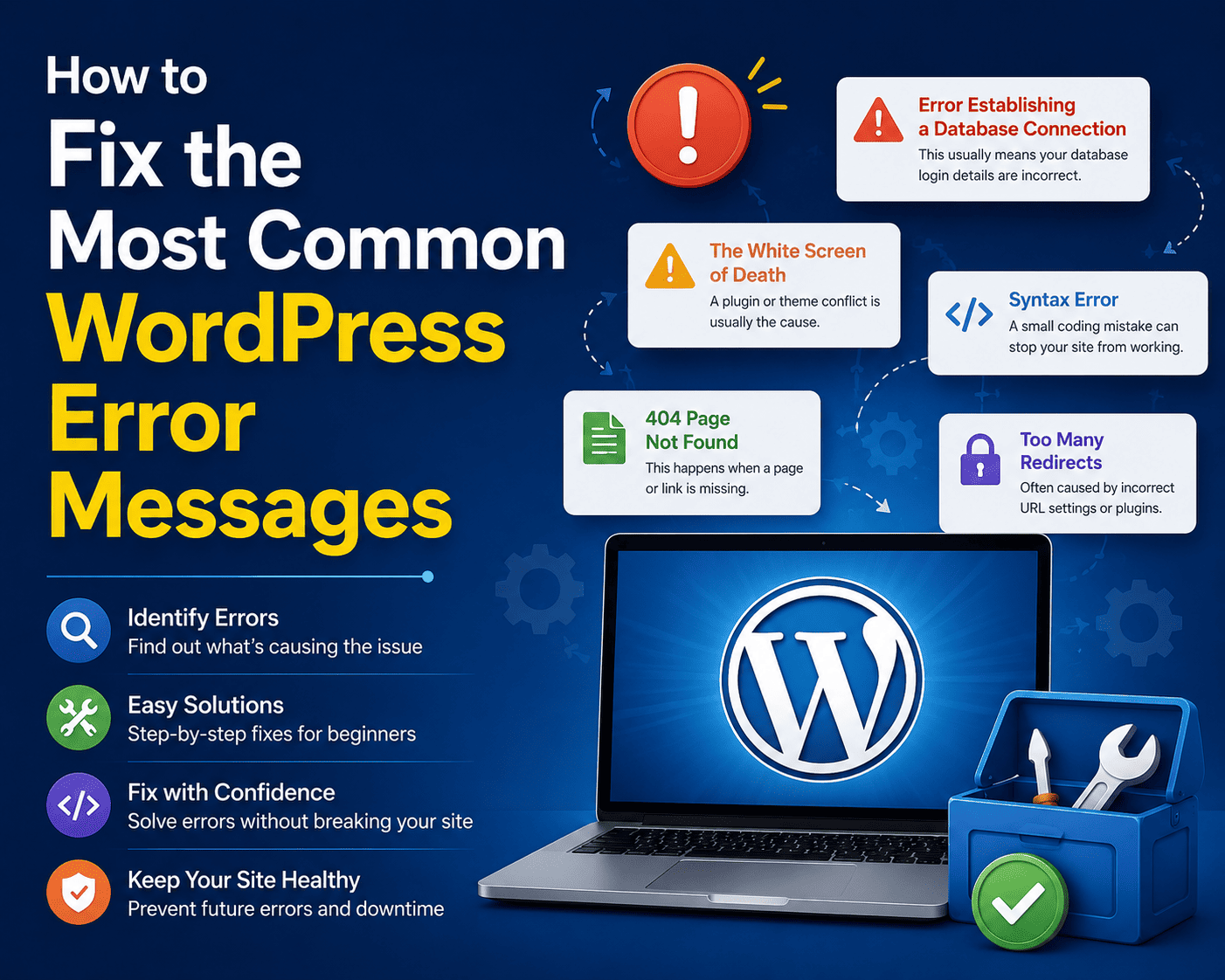

How to Fix the Most Common WordPress Error Messages
WordPress is powerful and beginner-friendly, but like any website platform, it can occasionally display confusing error messages. These errors may appear after installing a plugin, changing a theme, updating WordPress, modifying server settings, or simply because of a temporary hosting issue.
The good news is that most common WordPress errors can be diagnosed and fixed with a systematic approach.
Below are some of the most frequently encountered WordPress errors and practical ways to resolve them.
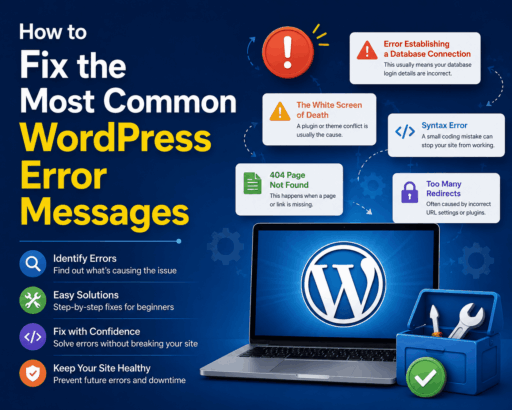
1. Error Establishing a Database Connection
This error means WordPress cannot communicate properly with its database.
Common causes:
- Incorrect database credentials
- Database server problems
- Corrupted database
- Hosting resource issues
- Database server overload
How to fix it:
First, check the database name, username, password, and host in your wp-config.php file.
If the credentials are correct, contact your hosting provider to verify that the database server is running properly.
You can also try repairing the database if you suspect corruption. Always create a backup before making database changes.
2. Internal Server Error (500)
A 500 Internal Server Error is a general server-side error. WordPress may display it when something goes wrong with PHP, plugins, themes, or server configuration.
Possible causes include:
- Plugin conflicts
- Theme problems
- Corrupted
.htaccess - PHP memory limitations
- Server configuration errors
How to troubleshoot:
Start by temporarily disabling plugins. If the error disappears, reactivate them individually to identify the problematic plugin.
You can also regenerate the .htaccess file by renaming the existing file and then going to:
WordPress Dashboard → Settings → Permalinks
Click Save Changes to generate a new .htaccess configuration.
3. White Screen of Death
The WordPress White Screen of Death occurs when the website displays a completely blank page.
This is often caused by:
- Plugin conflicts
- Theme errors
- PHP errors
- Insufficient PHP memory
- Incompatible software
Try disabling plugins and switching temporarily to a default WordPress theme.
If you cannot access the WordPress dashboard, you can disable plugins through your hosting file manager or SFTP by temporarily renaming the wp-content/plugins directory.
4. 404 Page Not Found Error
A 404 error means WordPress cannot find the requested page.
This frequently happens after:
- Changing permalink settings
- Deleting a page
- Moving a website
- Changing URL structures
- Incorrect redirects
Quick fix:
Go to:
Dashboard → Settings → Permalinks
Simply click Save Changes without changing anything.
WordPress will regenerate its permalink rules, which often resolves 404 problems.
If the problem continues, check your redirects and verify that the requested page actually exists.
5. WordPress Memory Exhausted Error
You may see an error similar to:
“Allowed memory size exhausted”
This indicates that PHP has reached the memory limit available to WordPress.
It can happen when running resource-intensive plugins, importing large amounts of data, or using poorly optimized code.
Depending on your hosting configuration, you may be able to increase the WordPress memory limit.
For example, wp-config.php can contain:
define('WP_MEMORY_LIMIT', '256M');
However, your hosting provider may impose its own PHP memory limit. If increasing the WordPress value has no effect, check your PHP and hosting configuration.
6. Maximum Execution Time Exceeded
Large imports, backups, updates, and resource-heavy operations can sometimes exceed the server’s PHP execution time.
You may see an error indicating that the maximum execution time has been exceeded.
Possible solutions include:
- Increasing PHP execution time
- Reducing the size of imports
- Disabling unnecessary plugins
- Splitting large tasks into smaller operations
- Optimizing resource-heavy processes
If you are on managed hosting, ask your provider whether the execution-time limit can be adjusted.
7. Failed to Load Resource Error
You may encounter browser-console messages such as:
“Failed to load resource”
This usually means the browser could not load a particular CSS file, JavaScript file, image, or other resource.
Possible causes include:
- Incorrect URL
- Missing file
- Plugin conflict
- HTTPS configuration problems
- Caching issues
- CDN configuration problems
Check the browser’s developer console to identify which resource is failing.
If the resource belongs to a plugin or theme, temporarily disabling that component can help determine the cause.
8. “Briefly Unavailable for Scheduled Maintenance”
During WordPress updates, the platform temporarily creates a .maintenance file.
Normally, WordPress removes this file automatically when the update finishes.
If an update is interrupted, the maintenance message may remain visible.
How to fix it:
Connect to your website using your hosting file manager or SFTP and look for the .maintenance file in the WordPress root directory.
Delete the file and refresh your website.
Create a backup before modifying important WordPress files.
9. “Are You Sure You Want to Do This?”
This vague WordPress message can appear when WordPress detects a problem with a request.
It can sometimes be related to:
- Plugin conflicts
- Theme conflicts
- Expired login sessions
- Security plugins
- Incorrect permissions
- Nonce verification failures
Start by logging out and back into WordPress.
If the problem continues, temporarily disable plugins and switch to a default theme to identify whether a plugin or theme is responsible.
10. “Destination Folder Already Exists”
This error commonly appears when installing or updating a plugin or theme.
It means WordPress has detected a folder with the same name in the relevant directory.
Possible reasons include:
- An incomplete previous installation
- An old plugin directory
- A failed update
Check the appropriate wp-content/plugins or wp-content/themes directory using your hosting file manager.
Before deleting anything, create a backup and make sure the existing directory does not contain custom files you need.
11. WordPress Login Redirect Loop
Sometimes WordPress repeatedly redirects you back to the login page.
Potential causes include:
- Incorrect WordPress URL settings
- Cookie problems
- Plugin conflicts
- SSL configuration problems
- Cache issues
Start by clearing your browser cookies and cache.
Then check the WordPress and site URLs under:
Settings → General
Make sure the URLs use the correct protocol and domain.
If you cannot access the dashboard, investigate the siteurl and home values in the WordPress database or temporarily disable plugins.
12. “Connection Is Not Private” or SSL Errors
Visitors may see browser warnings when your SSL certificate is missing, expired, incorrectly configured, or does not match the domain.
Check:
- SSL certificate validity
- Domain configuration
- HTTPS redirects
- Mixed-content warnings
- CDN or proxy SSL settings
Your hosting provider or SSL provider can usually help diagnose certificate and server configuration problems.
13. WordPress File Upload Error
Sometimes WordPress refuses to upload images or other media.
Possible causes include:
- File size restrictions
- Incorrect permissions
- Insufficient disk space
- Unsupported file types
- Server configuration limits
Check your available hosting storage and PHP upload limits.
Also verify that the WordPress uploads directory has appropriate permissions.
14. “Maximum Upload File Size Exceeded”
If WordPress rejects a large image, video, or other file, your PHP upload limit may be too low.
The maximum upload size can depend on settings such as:
upload_max_filesizepost_max_size- Server configuration
- Hosting restrictions
You can check the current limit from the WordPress media upload screen or your hosting control panel.
If necessary, ask your hosting provider to increase the appropriate limits.
15. WordPress Updates Failed
Sometimes WordPress, plugins, or themes fail to update.
Common causes include:
- Insufficient disk space
- File permission problems
- Incompatible plugins
- Server configuration issues
- Temporary connection problems
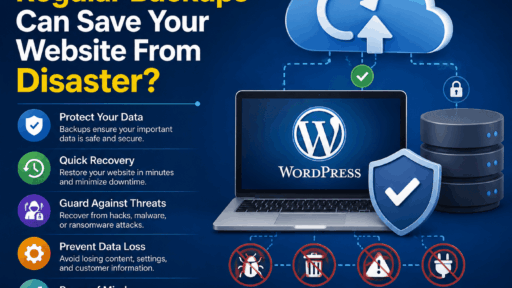
Before attempting major troubleshooting, create a complete backup.
Then check available disk space, disable conflicting plugins if appropriate, and retry the update.
Avoid repeatedly forcing updates if you suspect a corrupted installation.
How to Troubleshoot WordPress Errors Systematically
When you encounter an unfamiliar error, don’t immediately start changing multiple settings. A systematic approach makes it much easier to find the real cause.
Step 1: Create a Backup
Before modifying WordPress files, databases, plugins, or server settings, create a recent backup.
Step 2: Identify What Changed
Think about what happened immediately before the error appeared.
Did you:
- Install a plugin?
- Update WordPress?
- Change your theme?
- Modify PHP settings?
- Change your domain?
- Enable SSL?
- Move hosting?
The recent change is often an important clue.
Step 3: Check Plugins
Temporarily disable plugins and determine whether the problem disappears.
If it does, reactivate them one at a time until you find the source of the conflict.
Step 4: Test the Theme
Switch temporarily to a default WordPress theme.
If the problem disappears, investigate your active theme or its custom code.
Step 5: Check Server Resources
Review:
- PHP version
- PHP memory limit
- Execution time
- Disk space
- CPU usage
- RAM usage
- Server error logs
Some errors are caused by hosting limitations rather than WordPress itself.
Step 6: Check Error Logs
Server and PHP error logs can provide much more useful information than a generic WordPress error message.
Your hosting control panel may provide access to these logs.
Step 7: Restore a Known-Good Backup
If troubleshooting becomes complicated and you have a reliable recent backup, restoring the website can sometimes be the safest solution.
However, investigate the original cause afterward so the problem does not return.
Preventing WordPress Errors
The best way to deal with WordPress errors is to prevent avoidable problems in the first place.
Follow these practices:
- Keep WordPress updated.
- Update plugins and themes regularly.
- Remove unused plugins and themes.
- Use reputable plugins.
- Keep regular backups.
- Use a supported PHP version.
- Monitor hosting resources.
- Test major changes on a staging website.
- Use reliable WordPress hosting.
- Keep your website’s database optimized.
- Avoid installing unnecessary plugins.
Final Thoughts
WordPress errors can look complicated, but many of them have straightforward solutions. The key is to identify whether the problem comes from WordPress itself, a plugin, a theme, PHP, the database, or the hosting environment.
Always back up your website before making major changes, troubleshoot one variable at a time, and check server logs when the error message is unclear.
With proper maintenance, reliable hosting, regular backups, and a careful update process, you can significantly reduce the frequency and impact of common WordPress errors.