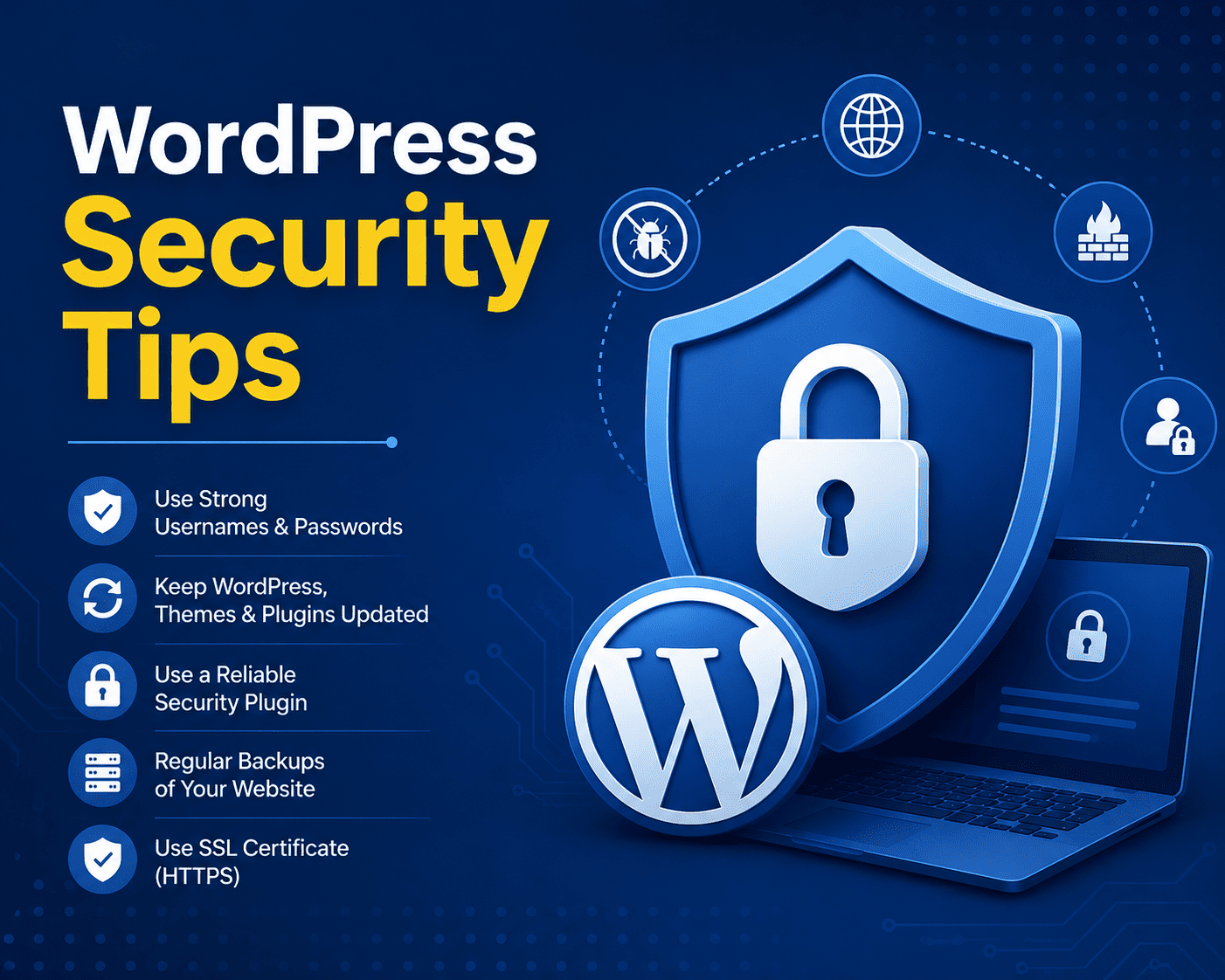

WordPress Security Tips: 15 Ways to Protect Your Website
WordPress powers millions of websites, making it a popular target for automated attacks, malware, brute-force login attempts, and other security threats. The good news is that you don’t need to be a security expert to significantly improve the protection of your WordPress website.
A secure WordPress website requires more than installing a security plugin. Regular updates, strong authentication, reliable backups, secure hosting, and good website management practices all play an important role.
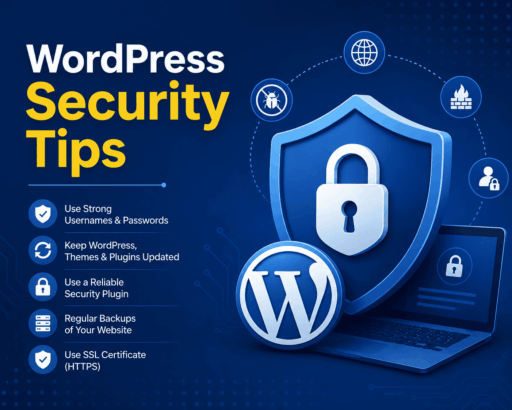
Here are 15 practical WordPress security tips to help protect your website.
1. Keep WordPress Updated
Always use the latest stable version of WordPress. Updates frequently include security fixes, bug fixes, and improvements.
You should also regularly update:
- WordPress core
- Themes
- Plugins
- PHP
- Other server software
Avoid leaving outdated plugins or themes installed simply because they are not currently active.
2. Use Strong Administrator Passwords
A weak administrator password can make your website an easy target for attackers.
Create long, unique passwords containing a combination of letters, numbers, and symbols. Never reuse your WordPress administrator password on other websites.
Using a reputable password manager can make it easier to create and securely store unique passwords.
3. Enable Two-Factor Authentication
Two-factor authentication (2FA) adds another layer of protection to your WordPress login.
Even if someone obtains your password, they may still be unable to access your account without the second authentication factor.
Enable 2FA for:
- Administrator accounts
- Hosting accounts
- Domain accounts
- Email accounts
- Other services connected to your website
4. Install a Reputable Security Plugin
A WordPress security plugin can help detect suspicious activity and provide additional protection.
Popular security plugins include tools such as:
- Wordfence
- Solid Security
- All-In-One Security
- Sucuri-related security solutions
Features vary between plugins, so choose one that matches your website’s requirements. Avoid installing several plugins that perform the same security functions unless you understand how they interact.
5. Use Secure WordPress Hosting
Your hosting environment has a major impact on website security.
Choose a hosting provider that offers features such as:
- SSL certificates
- Regular backups
- Malware monitoring
- Firewall protection
- Updated server software
- Account isolation where appropriate
- Security-focused server configuration
Even a perfectly configured WordPress installation can be affected by an insecure hosting environment.
6. Always Use HTTPS
HTTPS encrypts communication between visitors and your website.
Install an SSL/TLS certificate and make sure your website consistently uses HTTPS instead of HTTP.
After enabling SSL, check for:
- Mixed-content warnings
- HTTP redirects
- Secure image and script URLs
- Correct HTTPS configuration
Many hosting providers now offer free SSL certificates.
7. Remove Unused Plugins and Themes
Every additional plugin or theme increases the amount of software that needs to be maintained.
If you no longer need a plugin or theme, remove it rather than simply leaving it inactive.
Regularly review your WordPress installation and eliminate unnecessary software.
8. Download Plugins and Themes From Trusted Sources
Avoid downloading premium plugins or themes from unknown websites that distribute modified or “nulled” versions.
These files may contain malicious code, backdoors, or hidden scripts.
Whenever possible, obtain WordPress software from:
- WordPress.org
- The developer’s official website
- Reputable marketplaces
Saving a few dollars on an unofficial plugin can result in significant security and financial problems later.
9. Create Regular Backups
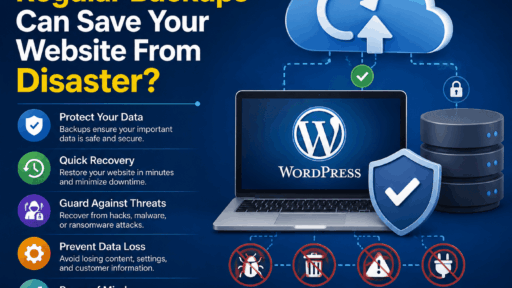
Backups are one of the most important parts of a WordPress security strategy.
A good backup system should include:
- Website files
- WordPress database
- Uploads
- Important configuration files
Keep backups in a separate location from your main hosting account. If your server is compromised, an independently stored backup can help you restore the website.
Test your backups periodically to ensure they actually work.
10. Limit Administrator Accounts
Don’t give administrator privileges to every person who needs access to your website.
Use the lowest permission level required for each user.
For example:
- Administrator: Complete website management
- Editor: Content management
- Author: Manage own posts
- Contributor: Create content without publishing
- Subscriber: Basic account access
Review your user list regularly and remove accounts that are no longer needed.
11. Protect Your WordPress Login
The default WordPress login page is well known, so automated bots frequently attempt to attack it.
You can improve login security by using:
- Strong passwords
- Two-factor authentication
- Login attempt protection
- CAPTCHA where appropriate
- Rate limiting
- Security monitoring
Changing the login URL alone should not be considered a complete security solution.
12. Keep PHP Updated
WordPress runs on PHP, so using an outdated PHP version can expose your website to known vulnerabilities and performance problems.
Use a currently supported PHP version recommended by WordPress and your hosting provider.
Before upgrading PHP on a production website, verify that your themes and plugins are compatible.
13. Use Least-Privilege File Permissions
Incorrect file permissions can expose sensitive website files or allow unauthorized modifications.
Your hosting environment should use appropriate permissions for WordPress files and directories.
Avoid giving files or folders broader write permissions than necessary.
If you’re unsure about permissions, ask your hosting provider or server administrator before making changes.
14. Monitor Your Website for Suspicious Activity
Security is not something you configure once and forget.
Regularly monitor your website for unusual behavior such as:
- Unknown administrator accounts
- Unexpected file changes
- Suspicious redirects
- New plugins you didn’t install
- Unexpected traffic spikes
- Unusual login attempts
- Changes to website content
Early detection can make security incidents much easier to contain.
15. Protect Your Hosting and Domain Accounts
WordPress security doesn’t stop at WordPress itself.
An attacker who gains access to your hosting or domain account could potentially take control of your website.
Protect these accounts with:
- Strong unique passwords
- Two-factor authentication
- Secure recovery email addresses
- Limited account access
- Regular security reviews
Your domain registrar account deserves the same level of protection as your WordPress administrator account.
Bonus: Create a WordPress Security Checklist
Use this checklist to perform a quick security review:
✓ WordPress is updated
✓ Plugins and themes are updated
✓ Unused plugins are removed
✓ Unused themes are removed
✓ Strong administrator passwords are used
✓ Two-factor authentication is enabled
✓ HTTPS is enabled
✓ Regular backups are configured
✓ Backups are stored separately
✓ Security monitoring is enabled
✓ Hosting account is protected
✓ Domain account is protected
✓ Unknown users are removed
✓ PHP is supported and updated
✓ Website activity is monitored
What to Do If Your WordPress Website Gets Hacked
If you suspect your website has been compromised, avoid immediately deleting random files. First, preserve evidence where possible and determine what happened.
A typical recovery process includes:
- Take the affected website offline if necessary.
- Create a backup or forensic copy of the compromised site.
- Change WordPress, hosting, database, FTP/SFTP, and other relevant passwords.
- Identify and remove malicious code.
- Update WordPress, plugins, themes, and server software.
- Scan the website for remaining malware.
- Restore from a known-clean backup if appropriate.
- Review administrator accounts and access logs.
- Identify the vulnerability that allowed the compromise.
- Strengthen security before bringing the website fully back online.
If the compromise is extensive, consider getting assistance from a professional security specialist or your hosting provider.
Final Thoughts
WordPress security is a continuous process rather than a single plugin or setting. Keeping software updated, using strong authentication, maintaining reliable backups, choosing secure hosting, and monitoring your website can significantly reduce your exposure to common attacks.
The most important principle is simple: prevent what you can, monitor what you can’t, and always maintain a reliable way to recover.
A secure WordPress website not only protects your data and visitors but also helps maintain your reputation, search visibility, and business continuity.