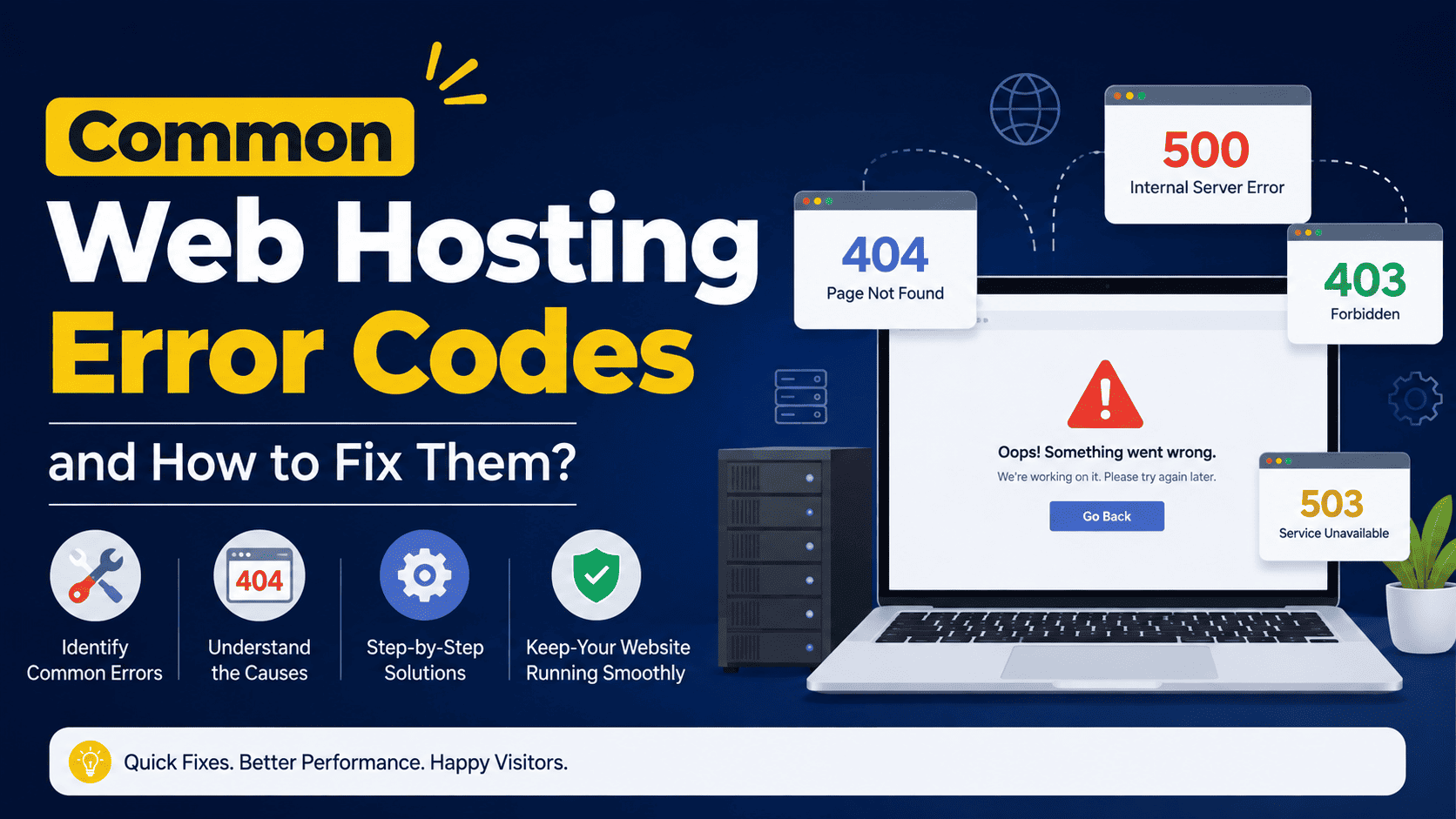

Common Web Hosting Error Codes and How to Fix Them
Running a website smoothly depends on reliable hosting, proper server configuration, and healthy website files. However, even a well-maintained website can occasionally display an error code. These errors can be confusing, especially when visitors see a blank page or a message such as “500 Internal Server Error” or “404 Not Found.”
Understanding common web hosting error codes makes troubleshooting much easier. Below are some of the most frequently encountered errors, what they mean, and practical ways to fix them.
1. 400 Bad Request
A 400 Bad Request error means the server cannot understand or process the request sent by the browser.
Common Causes
- Incorrect or corrupted browser cookies
- Invalid URL parameters
- Malformed HTTP requests
- Website configuration problems
- Incorrect redirects
How to Fix It
Start by checking that the URL is correct. Clear your browser cache and cookies and try again. If the problem affects multiple visitors, review your website configuration and server logs for malformed requests.
2. 401 Unauthorized
The 401 Unauthorized error generally indicates that authentication is required or that the provided login credentials are invalid.
Common Causes
- Incorrect username or password
- Password-protected directories
- Expired authentication sessions
- Incorrect server authentication settings
How to Fix It
Verify the login credentials and check whether the requested directory is protected by authentication. If you manage the server, review authentication rules and configuration files.
3. 403 Forbidden
A 403 Forbidden error means the server understood the request but refuses to allow access to the requested resource.
Common Causes
- Incorrect file or folder permissions
- A restrictive
.htaccessrule - IP blocking
- Directory access restrictions
- Security plugins or firewall rules
How to Fix It
Check your website’s file and directory permissions. For many Linux-based hosting environments, files commonly use permissions such as 644 and directories 755, although your hosting configuration may require different settings.
If permissions appear correct, inspect .htaccess rules and security software for accidental blocking.
4. 404 Not Found
One of the most recognizable errors is 404 Not Found. It means the server cannot find the requested page or file.
Common Causes
- Deleted pages
- Incorrect URLs
- Broken internal links
- Changed permalink structures
- Missing website files
How to Fix It
Check whether the requested page still exists. Correct broken links and restore missing files when necessary. If you have moved a page permanently, create a 301 redirect from the old URL to the new one.
For WordPress websites, refreshing the permalink settings can also resolve certain 404 problems.
5. 405 Method Not Allowed
A 405 Method Not Allowed error occurs when the server receives an HTTP method that is not supported for the requested resource.
Common Causes
- Incorrect server configuration
- Application or API restrictions
- Faulty rewrite rules
- Plugin conflicts
How to Fix It
Check the server configuration and rewrite rules. If the error occurs after installing or updating a plugin or application, temporarily disable the suspected component and test the website again.
6. 408 Request Timeout
A 408 Request Timeout means the server did not receive the complete request from the client within the expected time.
Common Causes
- Slow internet connection
- Server overload
- Network interruptions
- Very large requests
How to Fix It
Try loading the website again. If the issue happens frequently, check server resource usage, network connectivity, and application performance. Your hosting provider can also help determine whether server-side timeouts are involved.
7. 429 Too Many Requests
The 429 Too Many Requests error means a client has sent more requests than the server allows within a particular period.
Common Causes
- Excessive API requests
- Aggressive bots
- Misconfigured applications
- Rate-limiting rules
- Traffic spikes
How to Fix It
Check your server logs to identify the source of excessive requests. Adjust rate limits when appropriate, block abusive bots, optimize applications, and use caching or a CDN to reduce unnecessary requests.
8. 500 Internal Server Error
The 500 Internal Server Error is one of the most common server-side problems. It indicates that something went wrong on the server, but the server cannot provide a more specific explanation to the visitor.
Common Causes
- PHP errors
- Incorrect
.htaccessconfiguration - Faulty plugins or themes
- Incorrect file permissions
- Exhausted server resources
- Incompatible PHP versions
How to Fix It
Start by checking the server’s error logs. If you recently installed a plugin, theme, or software update, temporarily disable it to determine whether it caused the problem.
You should also review .htaccess, PHP settings, file permissions, and available CPU or memory resources.
9. 502 Bad Gateway
A 502 Bad Gateway error usually occurs when one server receives an invalid response from another server or upstream service.
Common Causes
- PHP-FPM problems
- Reverse proxy issues
- Overloaded backend servers
- DNS or network problems
- Temporary server failures
How to Fix It
Refresh the page first. If the error continues, restart affected services if you have server access and check PHP-FPM, Nginx, Apache, proxy, and server logs.
For managed hosting, contacting your hosting provider can help identify upstream server problems.
10. 503 Service Unavailable
The 503 Service Unavailable error means the server is temporarily unable to handle the request.
Common Causes
- Server maintenance
- Excessive traffic
- Resource limitations
- Crashed services
- Application overload
How to Fix It
Check whether scheduled maintenance is taking place. If you manage the server, examine CPU, RAM, PHP workers, database connections, and other resource usage.
If your website regularly reaches hosting resource limits, upgrading the hosting plan or optimizing the website may be necessary.
11. 504 Gateway Timeout
A 504 Gateway Timeout occurs when a gateway or proxy server waits too long for a response from an upstream server.
Common Causes
- Slow database queries
- Heavy PHP scripts
- Server overload
- Network delays
- Long-running applications
How to Fix It
Optimize database queries and application code, reduce resource-heavy operations, and check server performance. If you use a reverse proxy or CDN, review its timeout configuration as well.
12. 507 Insufficient Storage
A 507 Insufficient Storage error indicates that the server does not have enough storage space to complete the requested operation.
Common Causes
- Hosting disk quota exceeded
- Large backup files
- Excessive log files
- Unused media and website files
- Email storage consuming disk space
How to Fix It
Remove unnecessary files, old backups, unused email data, and temporary files. Check your hosting control panel for disk usage. If the website genuinely requires more storage, consider upgrading your hosting plan.
13. 508 Loop Detected
A 508 Loop Detected error generally means the server has detected an infinite processing loop.
Common Causes
- Incorrect rewrite rules
- Redirect loops
- Faulty scripts
- Application configuration errors
How to Fix It
Review recent redirects and rewrite rules. Check .htaccess and application configuration for rules that continuously send requests back to themselves.
Quick Web Hosting Error Troubleshooting Checklist
When an error appears, avoid making random configuration changes. Follow a systematic approach:
- Refresh the page and test again.
- Check whether the problem affects one page or the entire website.
- Review recently installed plugins, themes, or software.
- Check server and application error logs.
- Verify file and directory permissions.
- Review
.htaccessand rewrite rules. - Check available disk space and hosting resource usage.
- Verify DNS and domain configuration when appropriate.
- Test the website from another browser or network.
- Contact your hosting provider if the problem appears server-side.
Final Thoughts
Web hosting errors are not necessarily a sign that your website is permanently broken. In many cases, the error provides a useful clue about where the problem is located. 4xx errors generally relate to client requests or access problems, while 5xx errors usually indicate issues involving the server, application, or upstream services.
Keeping regular backups, monitoring server resources, updating website software carefully, and choosing dependable hosting can significantly reduce the impact of unexpected errors. When troubleshooting becomes difficult, your hosting provider’s technical support team can help identify server-level problems that may not be visible from your website dashboard.